Posted on — Leave a comment

Apply for Test the NuttyFi32!

APPLICATIONS CLOSED

NuttyFi32 RoadTest Program.

A community-driven hardware testing program where selected engineers, developers, makers and students evaluated the NuttyFi32 in real-world projects and shared their experience.

✓
Applications are now closed The NuttyFi32 RoadTest application window has ended.
4 Weeks RoadTest Duration
5 Units RoadTest Units
NuttyFi32 Development Board
NUTTYFi32
NuttyFi32
USB
✓
RoadTest Applications Closed NuttyFi32 Community Program
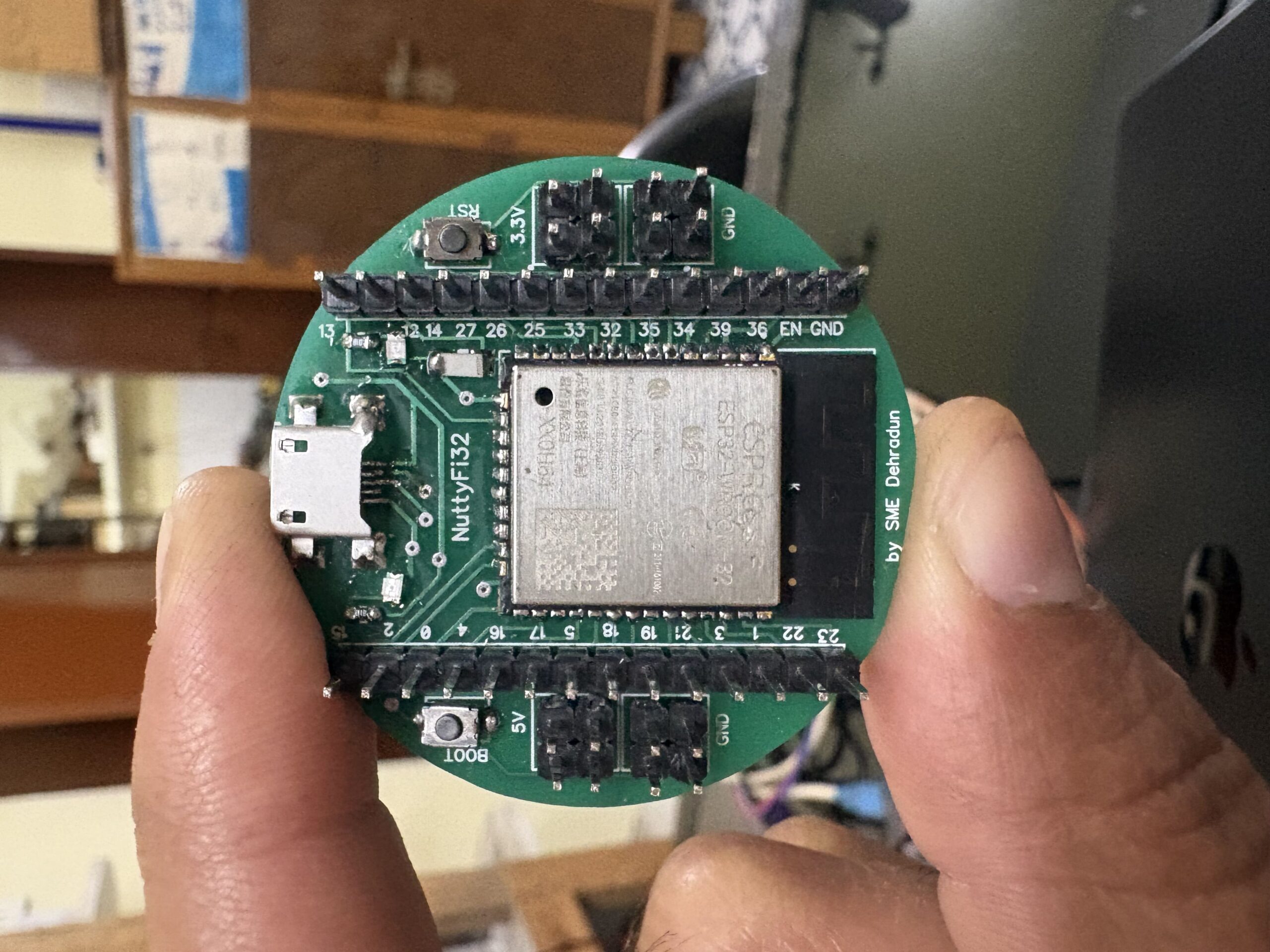
ACTUAL NUTTYFI32
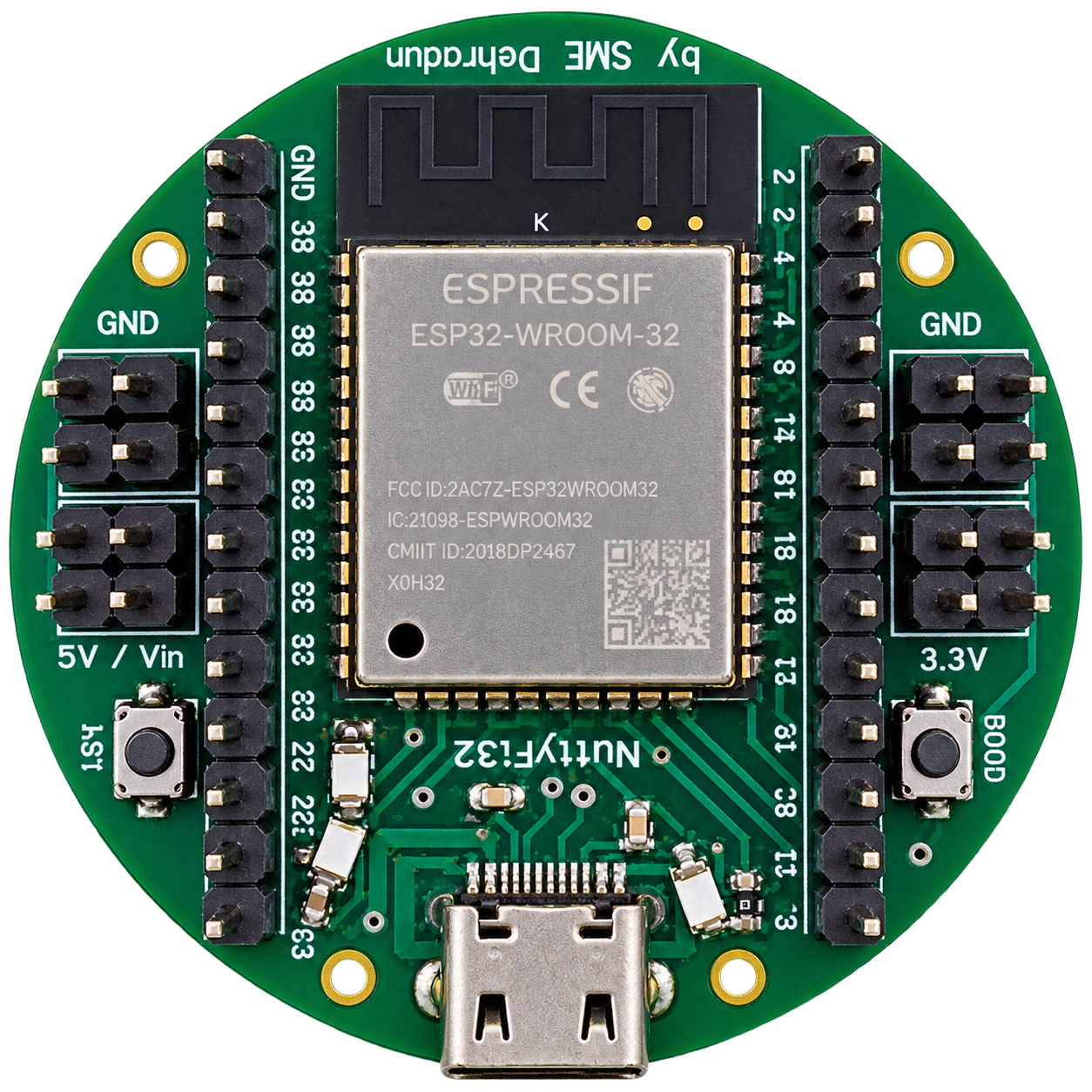
NuttyFi32 Development Board
ENGINEERING EVALUATION

What Was
Actually Tested?

01

Setup & First Use

Evaluate the initial setup experience, configuration process and how quickly you can get started.

02

Wi-Fi Connectivity

Test wireless connectivity, stability and behaviour during practical IoT applications.

03

Firmware & OTA

Explore firmware flashing, development workflows and over-the-air update capabilities.

04

Continuous Operation

Observe reliability during longer-running applications and real-world usage.

05

Power & Reset Behaviour

Test power behaviour, resets and unexpected operating conditions in your application.

06

Developer Experience

Share what worked well, what was difficult and what could be improved for developers.

ROADTEST PROGRAM

Real Hardware.
Real Testing.

The NuttyFi32 RoadTest was designed for engineers, developers, makers and students who wanted to evaluate the board in a practical project and share their experience.

01
4 WeeksTesting Duration
02
5 UnitsRoadTest Units
03
FREERoadTest Hardware
04
NUTTYFI32Development Platform
ROADTEST PARTICIPANTS

Built for people who actually build.

The RoadTest was intended for people with hands-on electronics, embedded, ESP32 or IoT experience who had a clear idea of how they wanted to evaluate the NuttyFi32.

See the RoadTest Journey →
01

Electronics & Embedded Engineers

Hands-on experience developing embedded systems.

02

IoT Developers

Developers working with connected hardware and IoT applications.

03

Makers & System Builders

Builders with practical electronics or embedded project experience.

04

Students & Researchers

Students with hands-on embedded or electronics experience.

THE ROADTEST JOURNEY

From Application
to Review.

01

Apply

Tell us about your background, intended use and why you want to test the NuttyFi32.

02

Selection

Selected applicants received a NuttyFi32 RoadTest unit for the evaluation period.

03

Test & Document

Use the board in a real application and document your experience, observations and measurements.

04

Publish Review

Share an original, honest review covering performance, limitations and suggestions.

ROADTEST PROGRAM CLOSED

The RoadTest has ended.

Thank you to everyone who showed interest in the NuttyFi32 RoadTest Program. The application window is now closed.

✓
Applications Closed New applications are no longer being accepted for this RoadTest program.
Posted on

How to Install the NuttyFi32 Board in Arduino IDE

The NuttyFi32 board has its own dedicated Arduino Board Package, allowing users to install board support directly using a custom Board Manager JSON—without selecting a generic ESP32 board.

While the official ESP32 board package installs support for multiple ESP32 boards, increasing storage usage and IDE complexity, NuttyFi32 uses an independent and board-specific package.

This keeps the installation lightweight, fast, and easy to manage, making NuttyFi32 ideal for developers who prefer a clean and focused Arduino development environment.

Follow the below steps

✅ Step 1: Install Arduino IDE

  1. Download and install the latest Arduino IDE:
    👉 https://www.arduino.cc/en/software

  2. Launch the Arduino IDE.

✅ Step 2: Add the NuttyFi32 Board Manager URL
  1. In Arduino IDE go to:

     
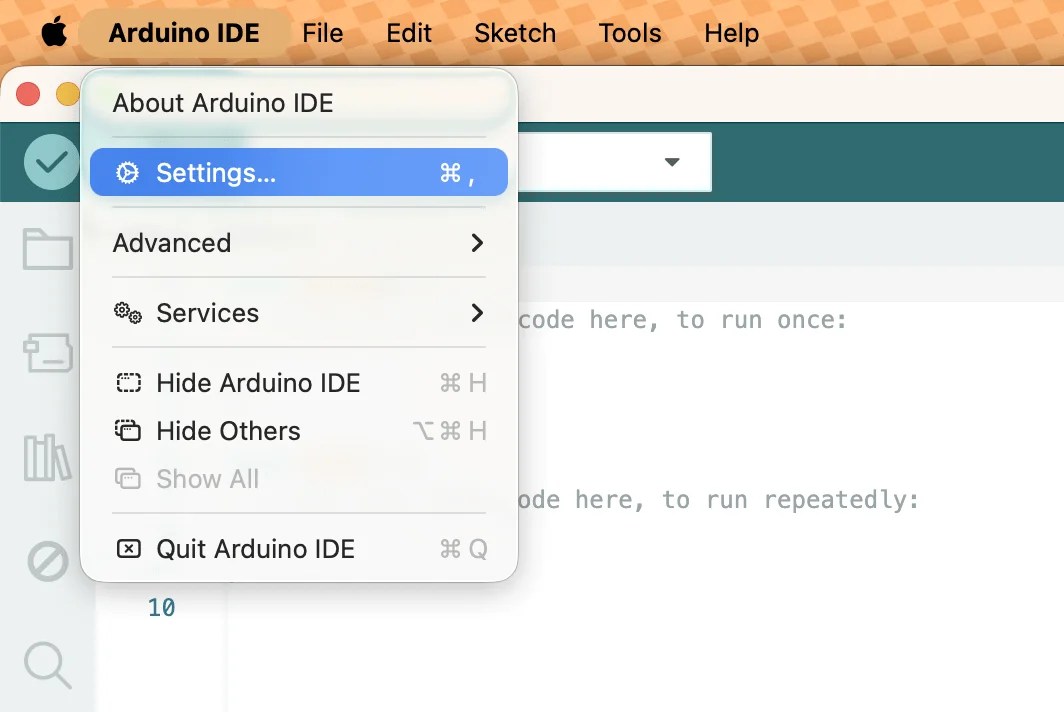
    File → Preferences

Note: If you are using MacOS: Arduino IDE, Then: Settings

2. Find the field labeled:
Additional Boards Manager URLs

3. Add this URL:

https://raw.githubusercontent.com/itsbhupendrasingh/nuttyfi32/Master/package_nuttyfi32_index.json

Tip: Arduino IDE supports multiple Additional URLs. Put each on a new line (IDE 2.x) or separate with commas (IDE 1.8.x).

Like- https://raw.githubusercontent.com/itsbhupendrasingh/Nuttyfi/main/package/package_nuttyfi_index.json, https://raw.githubusercontent.com/itsbhupendrasingh/nuttyfi32/Master/package_nuttyfi32_index.json,

  1. Click OK.

If you want to install NuttyFi2.0 Board in your Arduino IDE, then just follow our another tutorial guide on How to install NuttyFi2.0 Board in Arduino IDE.

✅ Step 3: Install NuttyFi32 Board Package

  • Go to:

    Tools → Board → Boards Manager
  • In the search bar type:

    nuttyfi32
  • When the NuttyFi32 board package appears, click:

    install
  • Wait for the installation to complete.

✅ Step 4: Select NuttyFi32 Board

  1. Go to: 

    Tools → Board
  2. Scroll down the list and choose:

     
    NuttyFi32

This ensures all board-specific configurations (flash size, CPU settings, partitions, etc.) are correct.

🪛 Step 5: Select COM Port

  1. Connect your NuttyFi32 board via USB-C cable.

  2. Go to:

     
    Tools → Port
  3. Select the port assigned to the board
    (e.g., COM5 on Windows or /dev/ttyUSB0 on Linux/macOS).

Note: The COM port shown in the example image may be different on your system. Always select the port that appears when the NuttyFi32 board is connected.

🧑‍💻 Step 6: USB Driver Installation (If Needed)

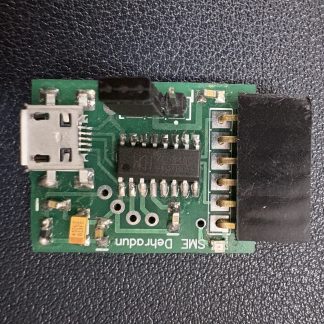
If your computer does not detect the board, you may need to install NuttyFi32 USB-to-UART drivers. 

Note: Still the NuttyFi32 board does not appear in the COM port list or you face USB driver issues, please watch this troubleshooting video below:

🧪 Step 8: Upload a Test Sketch

Let’s verify the NuttyFi32 board by running a simple test program.

✅ Led Blink Test Sketch (inbuilt).

Copy the code below and paste it into the Arduino IDE. Upload the sketch to the NuttyFi32 board.

After successful upload, the on-board LED will blink at an interval of 1000ms (1 second), confirming that the board is working correctly.

✅  Open the Serial Monitor at 115200 baud to view the LED status messages.

Test Sketch (Blink)

// Minimal Blink for NuttyFi32 inbuilt Led

#const int LED_PIN = 13;   // NuttyFi32 built-in LED

void setup() {
  Serial.begin(115200);
  delay(50);
  Serial.println("Simple blink start on NuttyFi32");
  pinMode(LED_PIN, OUTPUT);
}

void loop() {
  digitalWrite(LED_PIN, HIGH);   // LED ON
  Serial.println("LED ON");
  delay(1000);

  digitalWrite(LED_PIN, LOW);    // LED OFF
  Serial.println("LED OFF");
  delay(1000);
}


✅ LED Fade Test Sketch (inbuilt)

This example demonstrates PWM-based LED fading on the NuttyFi32 board using the ESP32 LEDC (LED Control) peripheral.

Copy the code below and paste it into the Arduino IDE, then upload the sketch to the NuttyFi32 board.

After a successful upload, the on-board LED connected to GPIO 13 will gradually fade in and fade out, verifying PWM functionality and confirming that the NuttyFi32 board is operating correctly.

✅  Open the Serial Monitor at 115200 baud to view the LED status messages.

LED Fade (NuttyFi IoT Board)

// NuttyFi32 IoT Board onboard LED (GPIO13), active-LOW

const int LED_PIN = 13;      // Built-in LED on NuttyFi32
const int PWM_CH = 0;        // Channel 0–15
const int PWM_FREQ = 5000;   // 5 kHz
const int PWM_RES = 8;       // 8-bit (0–255)

int brightness = 0;
int fadeAmount = 5;

void setup() {
  Serial.begin(115200);
  delay(200);   // small delay for serial monitor

  Serial.println("NuttyFi32 LED Fade Example Started");

  ledcSetup(PWM_CH, PWM_FREQ, PWM_RES);
  ledcAttachPin(LED_PIN, PWM_CH);
}

void loop() {
  ledcWrite(PWM_CH, brightness);

  // print current brightness
  Serial.print("Brightness: ");
  Serial.println(brightness);

  brightness += fadeAmount;

  if (brightness <= 0 || brightness >= 255) {
    fadeAmount = -fadeAmount;
  }

  delay(30);
}


⭐ NuttyFi2.0 Resources

For source code, board packages, updates, and documentation, visit the official NuttyFi GitHub repository: