Posted on

From Gerber to PCB: Upload, Preview & Order Your PCBs Online

Gerber to PCB

Your Gerber. Your PCB.

Upload your Gerber files, preview your PCB, check manufacturing requirements and move directly toward ordering.

✓ Gerber Preview ✓ Instant Pricing ✓ Online Ordering
Instant PCB Quote
Nutty Engineer PCB manufacturing preview
Simple PCB Workflow

From Gerber to PCB in Minutes

Start with your Gerber files and move through preview, pricing and ordering without unnecessary quotation back-and-forth.

01

Upload Gerber

Upload your PCB Gerber files directly to start the manufacturing workflow.

02

Preview Your PCB

Review your uploaded design and understand the board you're preparing to manufacture.

03

Get Your Quote

Configure your PCB requirements and check manufacturing pricing online.

04

Place Your Order

Once your requirements are confirmed, continue directly to PCB ordering.

No back-and-forth quotation emails. Get started directly from your Gerber files.

See Before You Order

Your PCB. Your Specs. Your Quote.

Upload your Gerber files and get a clear view of your PCB manufacturing requirements before placing your order.

https://www.nuttyengineer.com/instant-pcb-quote/
PCB PREVIEW
PCB Preview
Instant Quote
PCB Manufacturing
Layers 2 Layer
Board Size 100 × 100 mm
Quantity 100 pcs
Finish Standard
Estimated manufacturing cost Get Quote
Continue to Order →

Everything you need to make a better PCB decision.

Instead of waiting for a manual quotation, start directly with your Gerber files and review the manufacturing information online.

Gerber Preview

Visualize your PCB design before moving forward with manufacturing.

Instant Pricing

Check the manufacturing cost based on your selected PCB requirements.

Order Online

Once you're ready, proceed directly to place your PCB manufacturing order.
Try Gerber to PCB →
5 Sample PCBs
Prototype Option

Need only a few boards? Start with 5.

Our online ordering system has a 100-PCB minimum, but we can provide up to 5 sample PCBs at a lower cost for prototyping and testing.

Simply share your Gerber files

Email your Gerber files to us and mention that you require sample PCBs.

01 Send Gerber files
02 We review your files
03 Get sample pricing
Chat on WhatsApp

Send your Gerber files directly on WhatsApp for sample pricing.

Ready to Build?

Turn Your Gerber Into a Real PCB.

Upload your Gerber files, review your PCB requirements, get your manufacturing quote and move toward ordering with Nutty Engineer.

Gerber Preview  •  Instant Pricing  •  Online Ordering
Posted on — Leave a comment

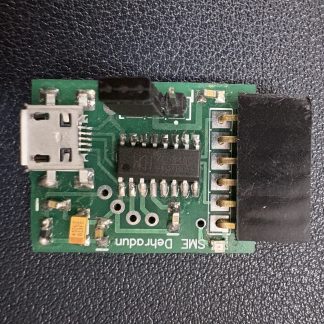
Apply for Test the NuttyFi32!

APPLICATIONS CLOSED

NuttyFi32 RoadTest Program.

A community-driven hardware testing program where selected engineers, developers, makers and students evaluated the NuttyFi32 in real-world projects and shared their experience.

✓
Applications are now closed The NuttyFi32 RoadTest application window has ended.
4 Weeks RoadTest Duration
5 Units RoadTest Units
NuttyFi32 Development Board
NUTTYFi32
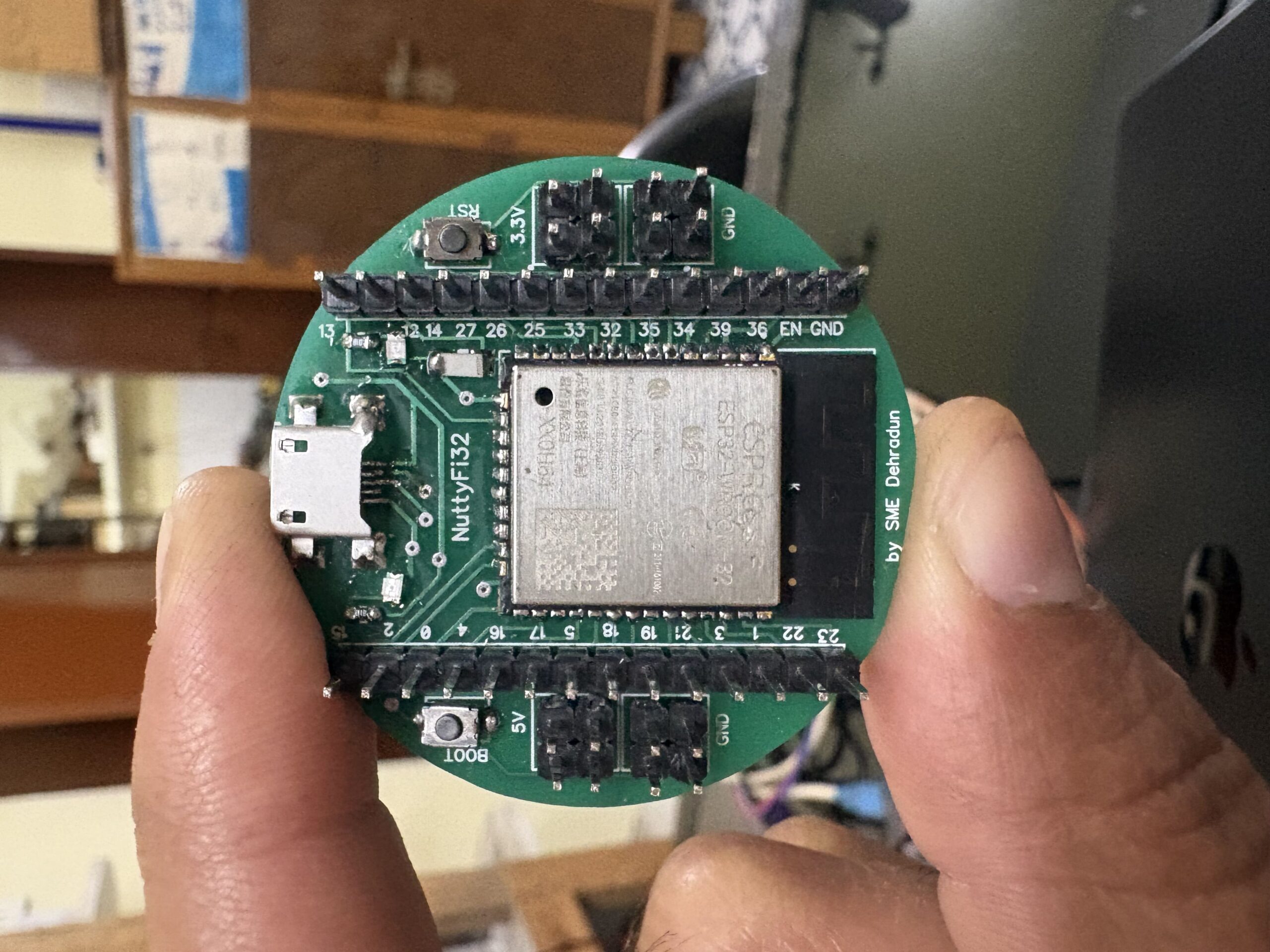
NuttyFi32
USB
✓
RoadTest Applications Closed NuttyFi32 Community Program
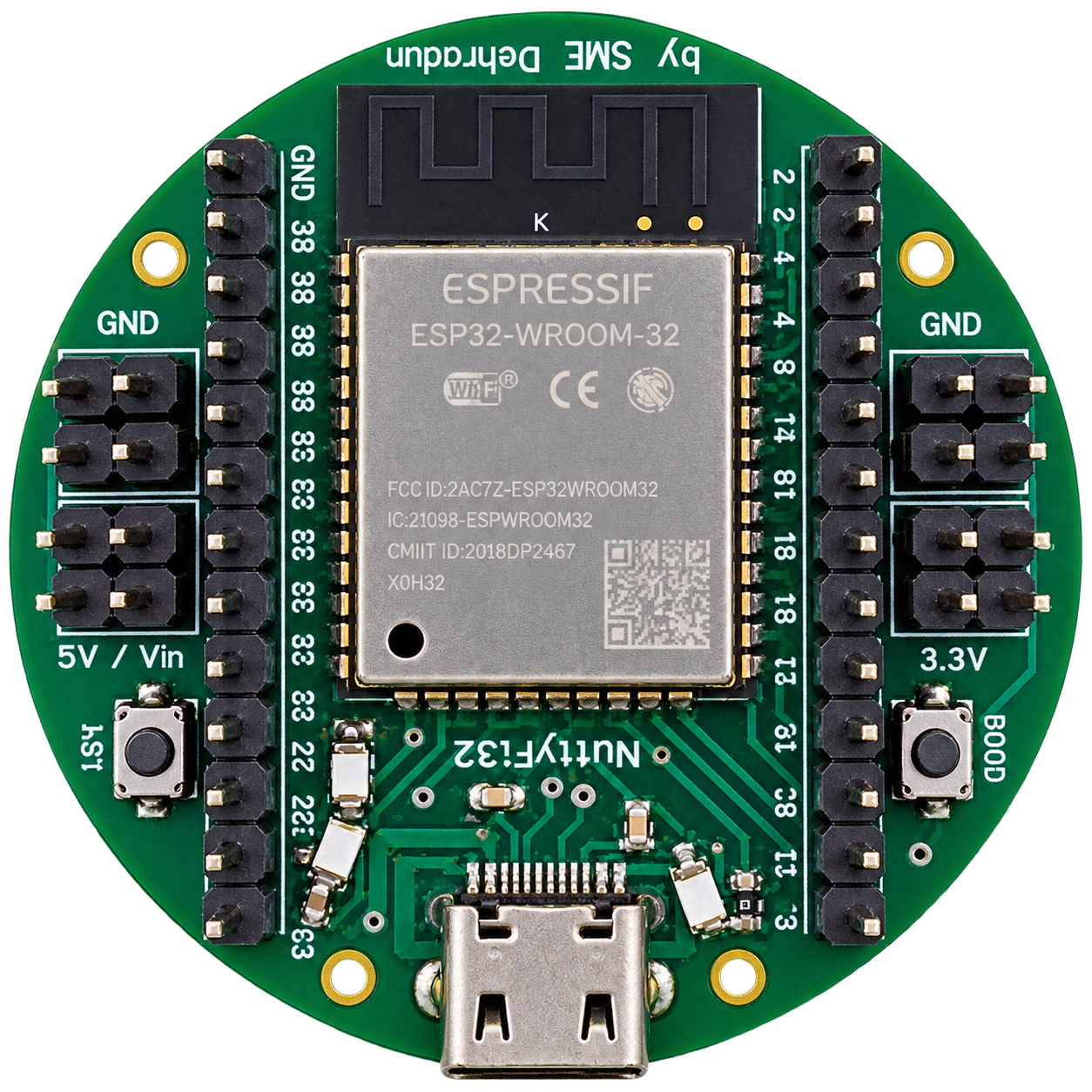
ACTUAL NUTTYFI32
NuttyFi32 Development Board
ENGINEERING EVALUATION

What Was
Actually Tested?

01

Setup & First Use

Evaluate the initial setup experience, configuration process and how quickly you can get started.

02

Wi-Fi Connectivity

Test wireless connectivity, stability and behaviour during practical IoT applications.

03

Firmware & OTA

Explore firmware flashing, development workflows and over-the-air update capabilities.

04

Continuous Operation

Observe reliability during longer-running applications and real-world usage.

05

Power & Reset Behaviour

Test power behaviour, resets and unexpected operating conditions in your application.

06

Developer Experience

Share what worked well, what was difficult and what could be improved for developers.

ROADTEST PROGRAM

Real Hardware.
Real Testing.

The NuttyFi32 RoadTest was designed for engineers, developers, makers and students who wanted to evaluate the board in a practical project and share their experience.

01
4 WeeksTesting Duration
02
5 UnitsRoadTest Units
03
FREERoadTest Hardware
04
NUTTYFI32Development Platform
ROADTEST PARTICIPANTS

Built for people who actually build.

The RoadTest was intended for people with hands-on electronics, embedded, ESP32 or IoT experience who had a clear idea of how they wanted to evaluate the NuttyFi32.

See the RoadTest Journey →
01

Electronics & Embedded Engineers

Hands-on experience developing embedded systems.

02

IoT Developers

Developers working with connected hardware and IoT applications.

03

Makers & System Builders

Builders with practical electronics or embedded project experience.

04

Students & Researchers

Students with hands-on embedded or electronics experience.

THE ROADTEST JOURNEY

From Application
to Review.

01

Apply

Tell us about your background, intended use and why you want to test the NuttyFi32.

02

Selection

Selected applicants received a NuttyFi32 RoadTest unit for the evaluation period.

03

Test & Document

Use the board in a real application and document your experience, observations and measurements.

04

Publish Review

Share an original, honest review covering performance, limitations and suggestions.

ROADTEST PROGRAM CLOSED

The RoadTest has ended.

Thank you to everyone who showed interest in the NuttyFi32 RoadTest Program. The application window is now closed.

✓
Applications Closed New applications are no longer being accepted for this RoadTest program.
Posted on

Apply to Test the NuttyFi2.0!

APPLICATIONS CLOSED

NuttyFi2.0 RoadTest Program.

A community-driven hardware testing program where selected engineers, developers, makers and students evaluated the NuttyFi2.0 in real-world projects and shared their experience.

✓
Applications are now closed The NuttyFi2.0 RoadTest application window has ended.
4 Weeks RoadTest Duration
5 Units RoadTest Units
NuttyFi2.0 Development Board
NUTTYFi2.0
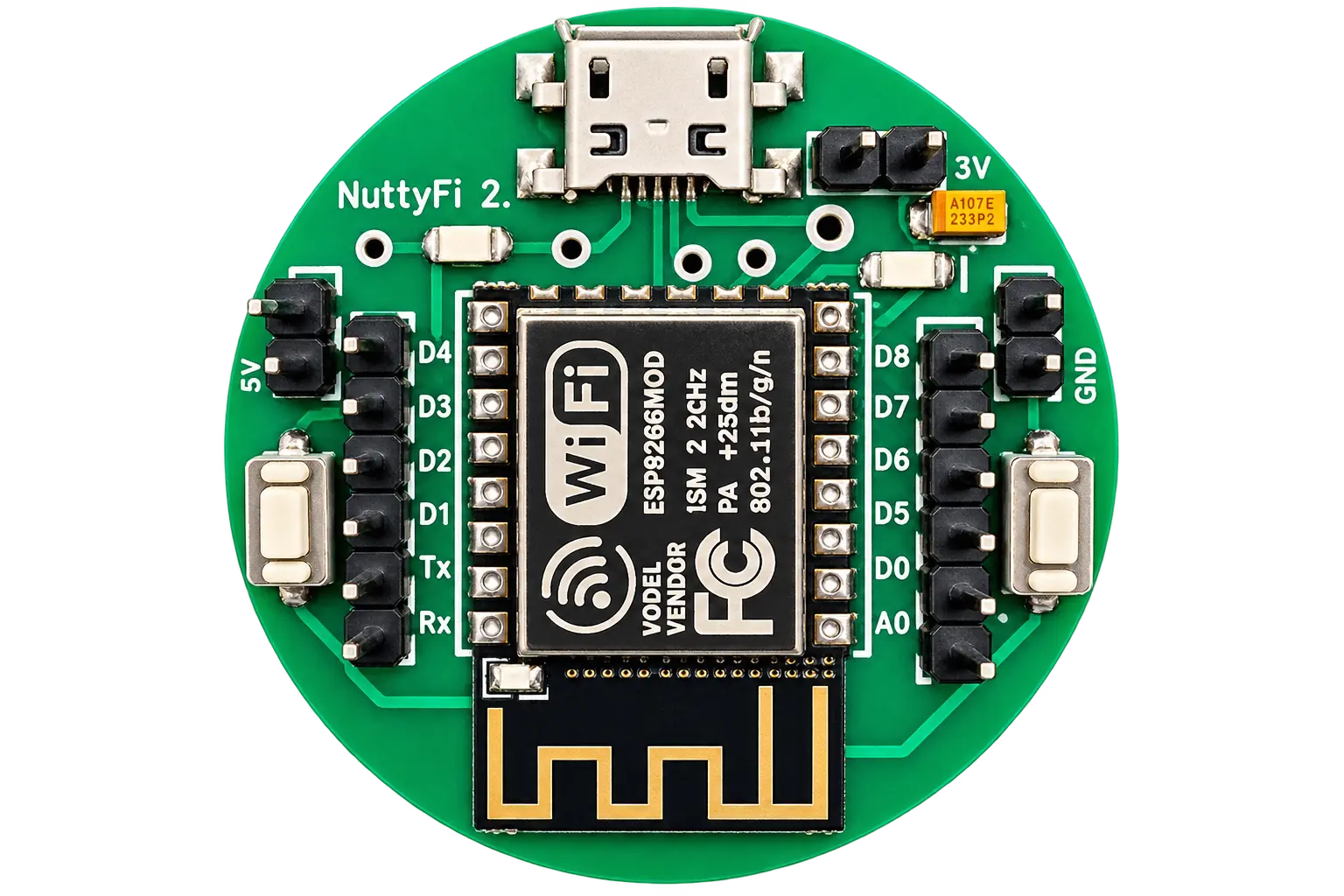
NuttyFi2.0
USB
✓
RoadTest Applications Closed NuttyFi2.0 Community Program
ACTUAL NUTTYFI2.0
NuttyFi2.0 Development Board
THE ROADTEST PROGRAM

Real Hardware.
Real-World Testing.

The NuttyFi2.0 RoadTest was created to put the board into practical projects and gather experience-based feedback from engineers, developers, makers and students.

01
4 Weeks
RoadTest Duration
02
5 Units
RoadTest Units
03
NuttyFi2.0
Development Board
04
Real Projects
Practical Evaluation
ENGINEERING EVALUATION

What Was
Tested?

RoadTest participants were encouraged to evaluate NuttyFi2.0 beyond basic bench testing and document what they experienced during practical use.

01
↗

Setup & First Use

Evaluate the initial setup, configuration and first-use experience.

02
◌

Connectivity & Stability

Observe connectivity behaviour and stability during practical real-world use.

03
⌁

Firmware & OTA

Evaluate firmware flashing workflows and over-the-air behaviour where applicable.

04
∞

Continuous Operation

Observe reliability and behaviour during longer-running applications.

05
⚡

Power & Reset

Evaluate power behaviour, resets and unexpected operating conditions.

06
◎

Developer Usability

Share observations about the development experience, workflow and practical usability.

07
!

Limitations

Identify issues, limitations and situations where the experience could be improved.

08
✓

Honest Feedback

Reviews were expected to communicate both strengths and limitations based on actual testing.

PARTICIPANT PROFILE

Built for people
who actually build.

The NuttyFi2.0 RoadTest was intended for participants with hands-on electronics, embedded, IoT or practical development experience and a clear idea of how they would use the board.

01

Electronics & Embedded Engineers

Professionals with hands-on experience building and evaluating electronic or embedded systems.

02

IoT Developers & System Integrators

Developers working on connected devices, automation systems and practical IoT applications.

03

Makers with Project Experience

Hands-on builders interested in evaluating hardware through real projects rather than simple demonstrations.

04

Students with Hands-On Experience

Students with practical electronics or embedded development experience and a clear project idea.

THE ROADTEST JOURNEY

From Selection
to Review.

The RoadTest followed a simple four-stage journey from participant selection through practical testing and final documentation.

01
→

Apply

Participants submitted their background, experience and intended use case for the RoadTest.

02
✓

Selection

Selected testers were chosen after the application window and received their RoadTest hardware.

03
◌

Test & Document

Testers used NuttyFi2.0 in real projects and shared observations during the RoadTest period.

04
↗

Publish Review

Each tester published a structured review covering experience, findings, limitations and recommendations.

REVIEW EXPECTATIONS What testers were expected to share
✓ Real project use✓ Mid-RoadTest update✓ Detailed final review✓ Strengths & limitations✓ Honest feedback
THE ROADTEST JOURNEY

From Selection
to Review.

The RoadTest followed a simple four-stage journey from participant selection through practical testing and final documentation.

01
→

Apply

Participants submitted their background, experience and intended use case for the RoadTest.

02
✓

Selection

Selected testers were chosen after the application window and received their RoadTest hardware.

03
◌

Test & Document

Testers used NuttyFi2.0 in real projects and shared observations during the RoadTest period.

04
↗

Publish Review

Each tester published a structured review covering experience, findings, limitations and recommendations.

REVIEW EXPECTATIONS What testers were expected to share
✓ Real project use✓ Mid-RoadTest update✓ Detailed final review✓ Strengths & limitations✓ Honest feedback
Posted on

How to install NuttyFi2.0 Wifi IoT Board in Arduino IDE

The NuttyFi2.0 development board has its own dedicated Arduino Board Manager package. This means you can install board support directly using a custom Board Manager JSON — no need to manually pick a generic ESP32 board.

Unlike the official ESP32 package (which installs many ESP32 board definitions and increases storage usage), NuttyFi2.0 uses an independent board package, designed exclusively for NuttyFi2.0 hardware. This keeps installation lightweight, fast, and easy to manage, without unnecessary boards. It’s perfect for developers who prefer a clean, minimal, and focused development setup.

Below are step-by-step instructions to install and start using NuttyFi2.0 in Arduino IDE.

🛠 Step 1: Install Arduino IDE

  1. Download and install the latest Arduino IDE from:
    https://www.arduino.cc/en/software

  2. Launch the Arduino IDE after installation.

🔗 Step 2: Add NuttyFi2.0 Board Manager URL

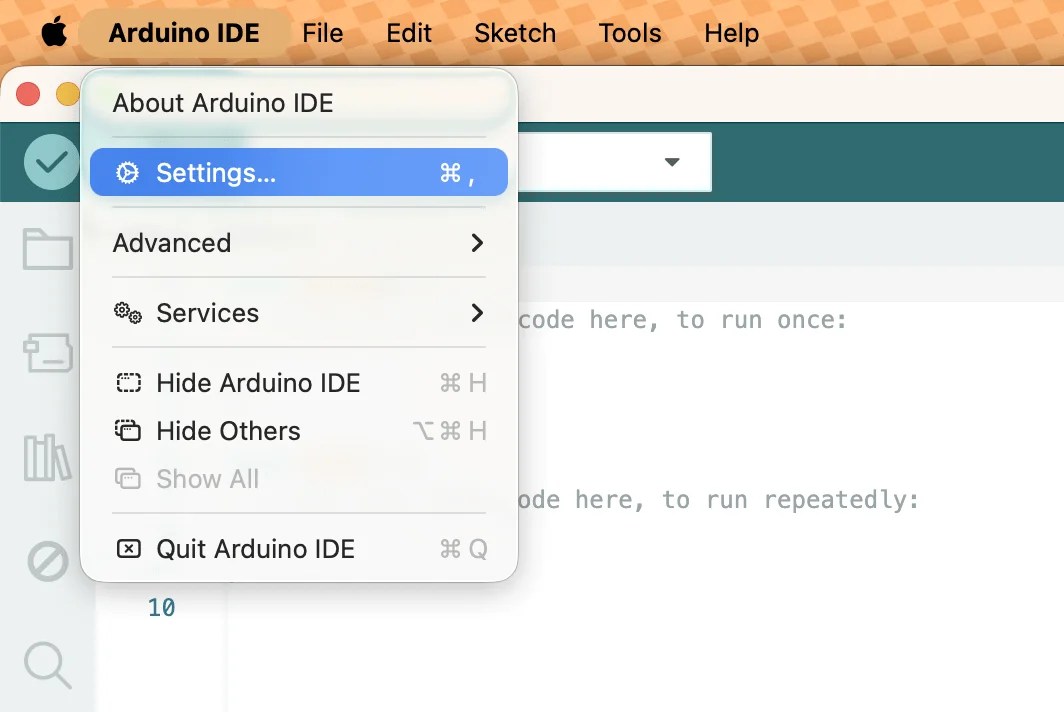
  • In Arduino IDE go to:Go to:

    • Windows / Linux: File → Preferences

    • macOS: Arduino IDE → Settings / Preferences

  • In Additional Boards Manager URLs, paste the following NuttyFi2.0 Board Manager link.
    • File → Preferences
https://raw.githubusercontent.com/itsbhupendrasingh/Nuttyfi/main/package/package_nuttyfi_index.json
  • Click OK.

Note: If you already have one or more URLs there, separate each with a comma.

If you want to install NuttyFi32 Board in your Arduino IDE, then just follow our another tutorial guide on How to install NuttyFi32 Board in Arduino IDE.

📥 Step 3: Install NuttyFi2.0 Board Package

  • Go to:

     
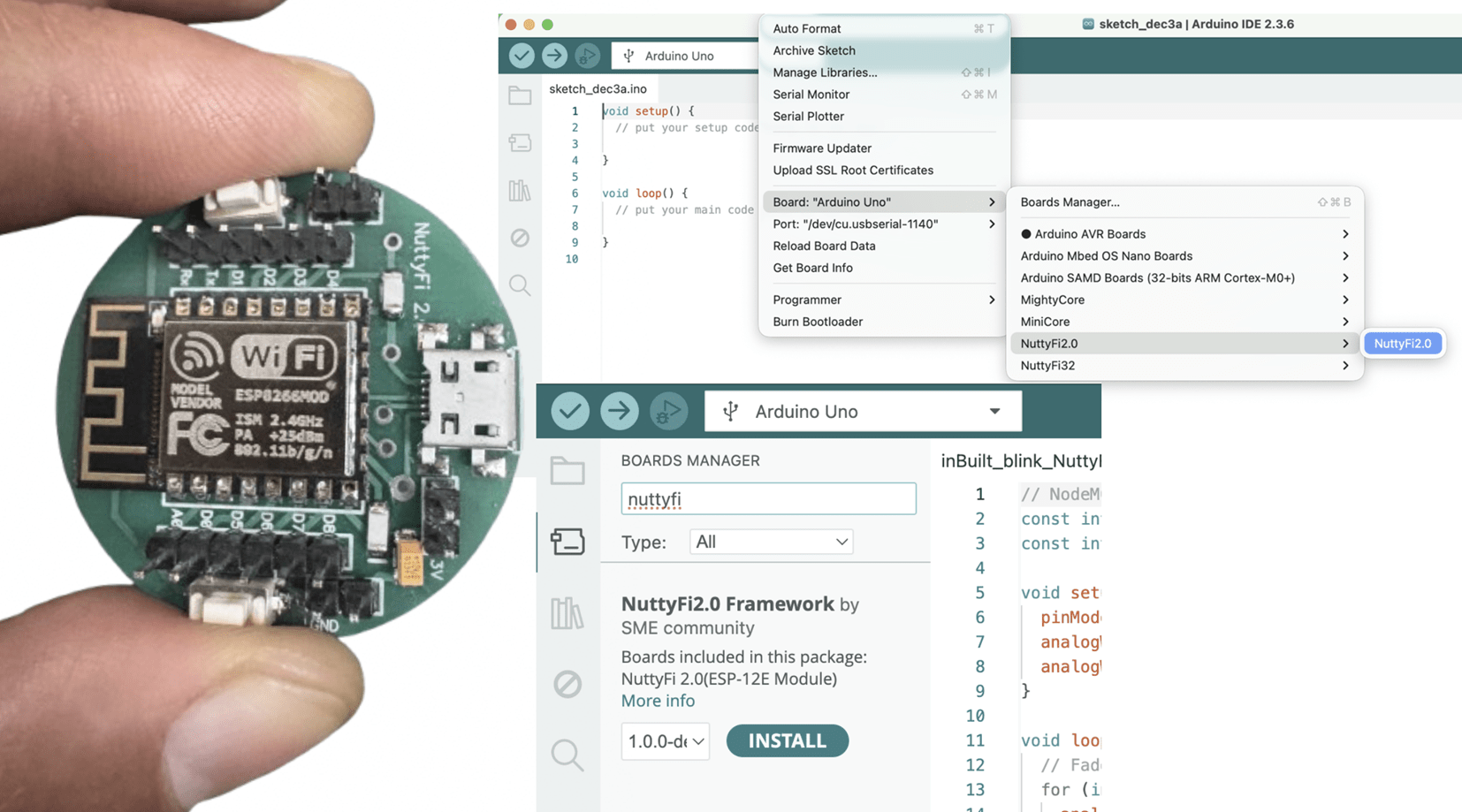
    Tools → Board → Boards Manager

Step 4: Open Boards Manager → Tools → Board → Boards Manager…

  • In the search bar type:

     
    NuttyFi2.0

  • When the board package appears, click →  Install.

  • Wait for installation to finish.

🧠 Step 4: Select NuttyFi2.0 Board

  1. Go to:

     
    Tools → Board
  2. Scroll down and select:

     
    NuttyFi2.0

💡 This loads NuttyFi2.0-specific settings (flash size, CPU, partition scheme).


🖥 Step 5: Connect Your Board and Select COM Port

  • Connect NuttyFi2.0 to your computer using a USB cable.

  • Go to:

     
    Tools → Port
  • Select the appropriate port:

    • Windows: COMx (e.g., COM4)

    • macOS/Linux: /dev/ttyUSBx or /dev/ttyACMx


⚠️ Note: The COM port shown in examples may differ on your computer. Always select the one that appears when NuttyFi2.0 is connected.

🧑‍💻 Step 6: USB Driver Installation (If Needed)

If your computer does not detect the board, you may need drivers depending on the USB-to-UART chip used:

Note: Still the NuttyFi2.0 board does not appear in the COM port list or you face USB driver issues, please watch this troubleshooting video below:

🧪 Step 8: Upload a Test Sketch

Let’s verify the NuttyFi2.0 board by running a simple test program.

✅ Led Blink Test Sketch (inbuilt).

Copy the code below and paste it into the Arduino IDE. Upload the sketch to the NuttyFi2.0 board.

After successful upload, the on-board LED will blink at an interval of 500 ms (half a second), confirming that the board is working correctly.

Test Sketch (Blink)

// Minimal Blink for NuttyFi2.0 inbuilt Led

#ifndef LED_BUILTIN
#define LED_BUILTIN D4 // LED is on GPIO2
#endif

void setup(){
  pinMode(LED_BUILTIN, OUTPUT);
}

void loop(){
  digitalWrite(LED_BUILTIN, !digitalRead(LED_BUILTIN));
  delay(500);
}
  

✅ LED Fade Test Sketch (inbuilt)

This example demonstrates PWM-based LED fading on the NuttyFi2.0 board.

Copy the code below and paste it into the Arduino IDE, then upload the sketch to the NuttyFi2.0 board.

After a successful upload, the on-board LED will gradually fade in and fade out, verifying PWM functionality and confirming that the board is operating correctly.

LED Fade (NuttyFi2.0 IoT Board)

// NuttyFi2.0 IoT Board onboard LED (GPIO2 / D4), active-LOW
const int LED_PIN = D4;     // or use LED_BUILTIN
const int PWM_MAX = 1023;   // Nuttyfi2.0 analogWrite range (0..1023)

void setup() {
  pinMode(LED_PIN, OUTPUT);
  analogWriteRange(PWM_MAX);
  analogWriteFreq(1000);    // 1 kHz (optional)
}

void loop() {
  // Fade IN (dim -> bright)
  for (int b = 0; b <= PWM_MAX; b += 5) {
    analogWrite(LED_PIN, PWM_MAX - b); // invert for active-LOW
    delay(5);
  }
  // Fade OUT (bright -> dim)
  for (int b = PWM_MAX; b >= 0; b -= 5) {
    analogWrite(LED_PIN, PWM_MAX - b); // invert for active-LOW
    delay(5);
  }
}
  

⭐ NuttyFi2.0 Resources

For source code, board packages, updates, and documentation, visit the official NuttyFi GitHub repository:

Posted on

How to Install the NuttyFi32 Board in Arduino IDE

The NuttyFi32 board has its own dedicated Arduino Board Package, allowing users to install board support directly using a custom Board Manager JSON—without selecting a generic ESP32 board.

While the official ESP32 board package installs support for multiple ESP32 boards, increasing storage usage and IDE complexity, NuttyFi32 uses an independent and board-specific package.

This keeps the installation lightweight, fast, and easy to manage, making NuttyFi32 ideal for developers who prefer a clean and focused Arduino development environment.

Follow the below steps

✅ Step 1: Install Arduino IDE

  1. Download and install the latest Arduino IDE:
    👉 https://www.arduino.cc/en/software

  2. Launch the Arduino IDE.

✅ Step 2: Add the NuttyFi32 Board Manager URL
  1. In Arduino IDE go to:

     
    File → Preferences

Note: If you are using MacOS: Arduino IDE, Then: Settings

2. Find the field labeled:
Additional Boards Manager URLs

3. Add this URL:

https://raw.githubusercontent.com/itsbhupendrasingh/nuttyfi32/Master/package_nuttyfi32_index.json

Tip: Arduino IDE supports multiple Additional URLs. Put each on a new line (IDE 2.x) or separate with commas (IDE 1.8.x).

Like- https://raw.githubusercontent.com/itsbhupendrasingh/Nuttyfi/main/package/package_nuttyfi_index.json, https://raw.githubusercontent.com/itsbhupendrasingh/nuttyfi32/Master/package_nuttyfi32_index.json,

  1. Click OK.

If you want to install NuttyFi2.0 Board in your Arduino IDE, then just follow our another tutorial guide on How to install NuttyFi2.0 Board in Arduino IDE.

✅ Step 3: Install NuttyFi32 Board Package

  • Go to:

    Tools → Board → Boards Manager
  • In the search bar type:

    nuttyfi32
  • When the NuttyFi32 board package appears, click:

    install
  • Wait for the installation to complete.

✅ Step 4: Select NuttyFi32 Board

  1. Go to: 

    Tools → Board
  2. Scroll down the list and choose:

     
    NuttyFi32

This ensures all board-specific configurations (flash size, CPU settings, partitions, etc.) are correct.

🪛 Step 5: Select COM Port

  1. Connect your NuttyFi32 board via USB-C cable.

  2. Go to:

     
    Tools → Port
  3. Select the port assigned to the board
    (e.g., COM5 on Windows or /dev/ttyUSB0 on Linux/macOS).

Note: The COM port shown in the example image may be different on your system. Always select the port that appears when the NuttyFi32 board is connected.

🧑‍💻 Step 6: USB Driver Installation (If Needed)

If your computer does not detect the board, you may need to install NuttyFi32 USB-to-UART drivers. 

Note: Still the NuttyFi32 board does not appear in the COM port list or you face USB driver issues, please watch this troubleshooting video below:

🧪 Step 8: Upload a Test Sketch

Let’s verify the NuttyFi32 board by running a simple test program.

✅ Led Blink Test Sketch (inbuilt).

Copy the code below and paste it into the Arduino IDE. Upload the sketch to the NuttyFi32 board.

After successful upload, the on-board LED will blink at an interval of 1000ms (1 second), confirming that the board is working correctly.

✅  Open the Serial Monitor at 115200 baud to view the LED status messages.

Test Sketch (Blink)

// Minimal Blink for NuttyFi32 inbuilt Led

#const int LED_PIN = 13;   // NuttyFi32 built-in LED

void setup() {
  Serial.begin(115200);
  delay(50);
  Serial.println("Simple blink start on NuttyFi32");
  pinMode(LED_PIN, OUTPUT);
}

void loop() {
  digitalWrite(LED_PIN, HIGH);   // LED ON
  Serial.println("LED ON");
  delay(1000);

  digitalWrite(LED_PIN, LOW);    // LED OFF
  Serial.println("LED OFF");
  delay(1000);
}


✅ LED Fade Test Sketch (inbuilt)

This example demonstrates PWM-based LED fading on the NuttyFi32 board using the ESP32 LEDC (LED Control) peripheral.

Copy the code below and paste it into the Arduino IDE, then upload the sketch to the NuttyFi32 board.

After a successful upload, the on-board LED connected to GPIO 13 will gradually fade in and fade out, verifying PWM functionality and confirming that the NuttyFi32 board is operating correctly.

✅  Open the Serial Monitor at 115200 baud to view the LED status messages.

LED Fade (NuttyFi IoT Board)

// NuttyFi32 IoT Board onboard LED (GPIO13), active-LOW

const int LED_PIN = 13;      // Built-in LED on NuttyFi32
const int PWM_CH = 0;        // Channel 0–15
const int PWM_FREQ = 5000;   // 5 kHz
const int PWM_RES = 8;       // 8-bit (0–255)

int brightness = 0;
int fadeAmount = 5;

void setup() {
  Serial.begin(115200);
  delay(200);   // small delay for serial monitor

  Serial.println("NuttyFi32 LED Fade Example Started");

  ledcSetup(PWM_CH, PWM_FREQ, PWM_RES);
  ledcAttachPin(LED_PIN, PWM_CH);
}

void loop() {
  ledcWrite(PWM_CH, brightness);

  // print current brightness
  Serial.print("Brightness: ");
  Serial.println(brightness);

  brightness += fadeAmount;

  if (brightness <= 0 || brightness >= 255) {
    fadeAmount = -fadeAmount;
  }

  delay(30);
}


⭐ NuttyFi2.0 Resources

For source code, board packages, updates, and documentation, visit the official NuttyFi GitHub repository:

Posted on

Step-by-Step Guide to Install New Blynk2.0 Python Library in Raspberry Pi

This tutorial will guide you how you can install the New Blynk2.0 Python Library in Raspberry Pi .

So Open the LX Terminal Window in the Raspberry pi desktop.

Once installed, then you need to install the New Blynk library through below command.

git clone https://github.com/vshymanskyy/blynk-library-python.git

This command will install the copy of the Blynk Python Library folder inside the root folder of your the Raspberry PI. Once its done. you can find the Blynk Library folder Like below image.

Now you can compile any blynk programming code inside this blynk-library-python folder.

For innovation video on the projects, you can go to our YouTube channel at https://www.youtube.com/@smedehradun

Posted on

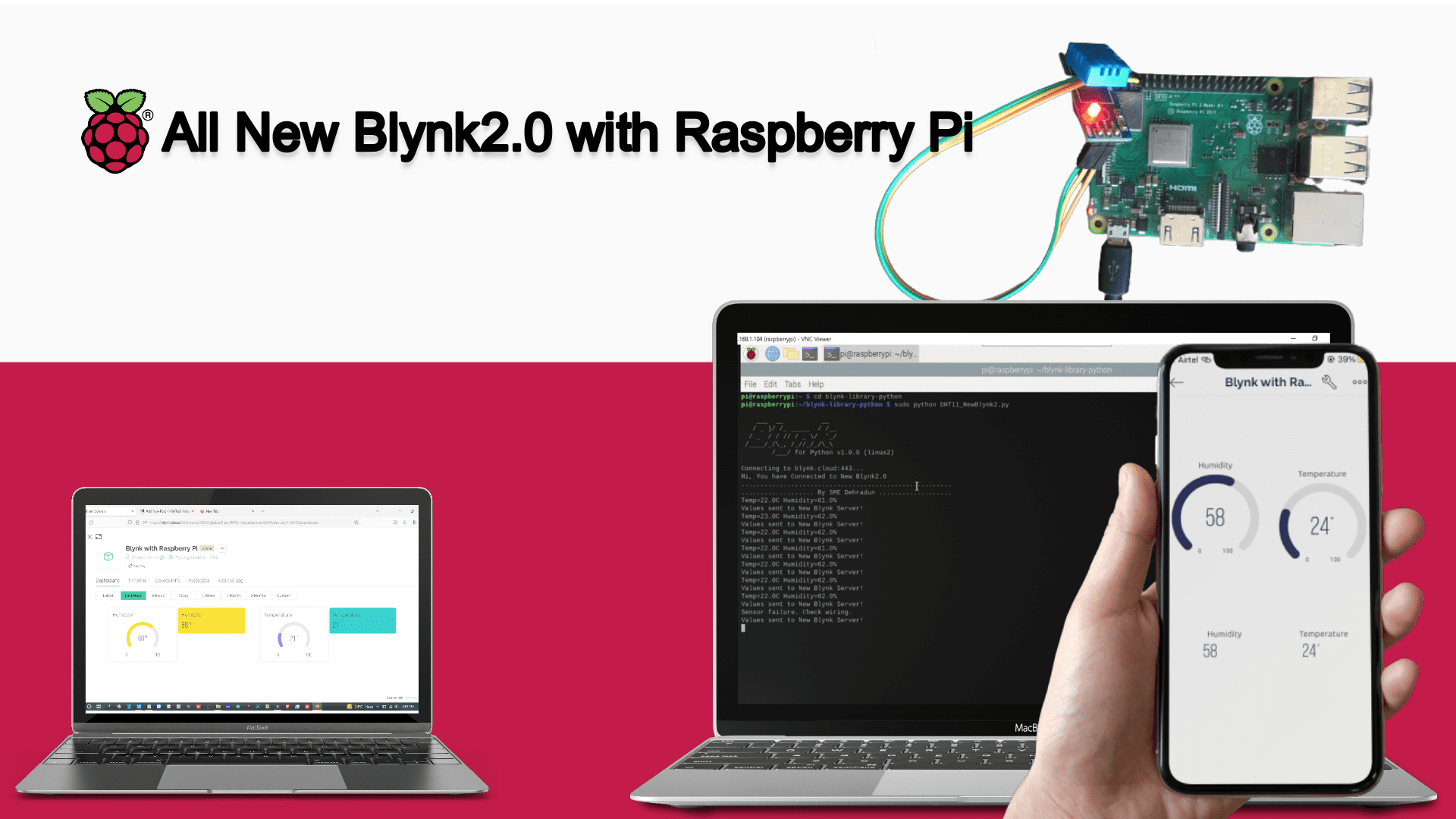
DHT11 Sensor Data to New blynk2.0 IoT using Raspberry Pi

This tutorial will guide you how you can connect Raspberry Pi with New Blynk2.0 IoT App and Web Dashboard..

So connect the DHT11/DHT22 Sensor with Raspberry pi as  per this circuit diagram.

Now, install the DHT sensor poython library in the Raspberry Pi through the below commands.

sudo pip3 install Adafruit_DHT

If you are getting any problem to install the DHT sensor library, Watch the complete video tutorials on “How to get Humidity and Temperature data to raspberry pi using DHT11 sensor”.

Once installed, then you need to install the New Blynk library through below command.

git clone https://github.com/vshymanskyy/blynk-library-python.git

After the installation of blynk library, you need to create the text file using TextEditor. So go to the Accessories and open the TextEditor. Copy the below code and paste in to the file.

Now, go to the Accessories and open the TextEditor. Copy the below code and paste in to the file.

After that, save this file in the inside the Blynk Library folder with name as DHT11_NewBlynk2.py

"""
This Code is belong to SME Dehraun. for any query write to schematicslab@gmail.com

"""

import BlynkLib
import RPi.GPIO as GPIO
from BlynkTimer import BlynkTimer

import Adafruit_DHT
import time

DHT_SENSOR = Adafruit_DHT.DHT11
DHT_PIN = 4
#BLYNK_AUTH_TOKEN = 'kt85ldXRL362juNQiymMClUUxdsuygTN'
BLYNK_AUTH_TOKEN = 'jsfpl_ACPJIVDdkFJ9THE5PkCVvYR8FS'

# Initialize Blynk
blynk = BlynkLib.Blynk(BLYNK_AUTH_TOKEN)

# Create BlynkTimer Instance
timer = BlynkTimer()


# function to sync the data from virtual pins
@blynk.on("connected")
def blynk_connected():
print("Hi, You have Connected to New Blynk2.0")
print(".......................................................")
print("................... By SME Dehradun ...................")
time.sleep(2);

# Functon for collect data from sensor & send it to Server
def myData():
humidity, temperature = Adafruit_DHT.read(DHT_SENSOR, DHT_PIN)
if humidity is not None and temperature is not None:
print("Temp={0:0.1f}C Humidity={1:0.1f}%".format(temperature, humidity))
else:
print("Sensor failure. Check wiring.");

blynk.virtual_write(0, humidity,)
blynk.virtual_write(1, temperature)
print("Values sent to New Blynk Server!")

timer.set_interval(2, myData)


while True:
blynk.run()
timer.run()


So we have successfully save our program. Now time to run the program in the Terminal and send the Humidity & Temperature values to New Blynk2.0 IoT app and Web Dashboard.

So run the following command to run the program.


cd blynk-library-python
sudo python DHT11_NewBlynk2.py

After running the command, You will get the output in the serial like this.


Now you can see the humidity and Temperature Values in the New Blynk Web Dashboard like this.

You can also see the data in New Blynk Mobile App.

Watch the Video Tutorial- How to connect the Raspberry with New Blynk2.0.

Posted on

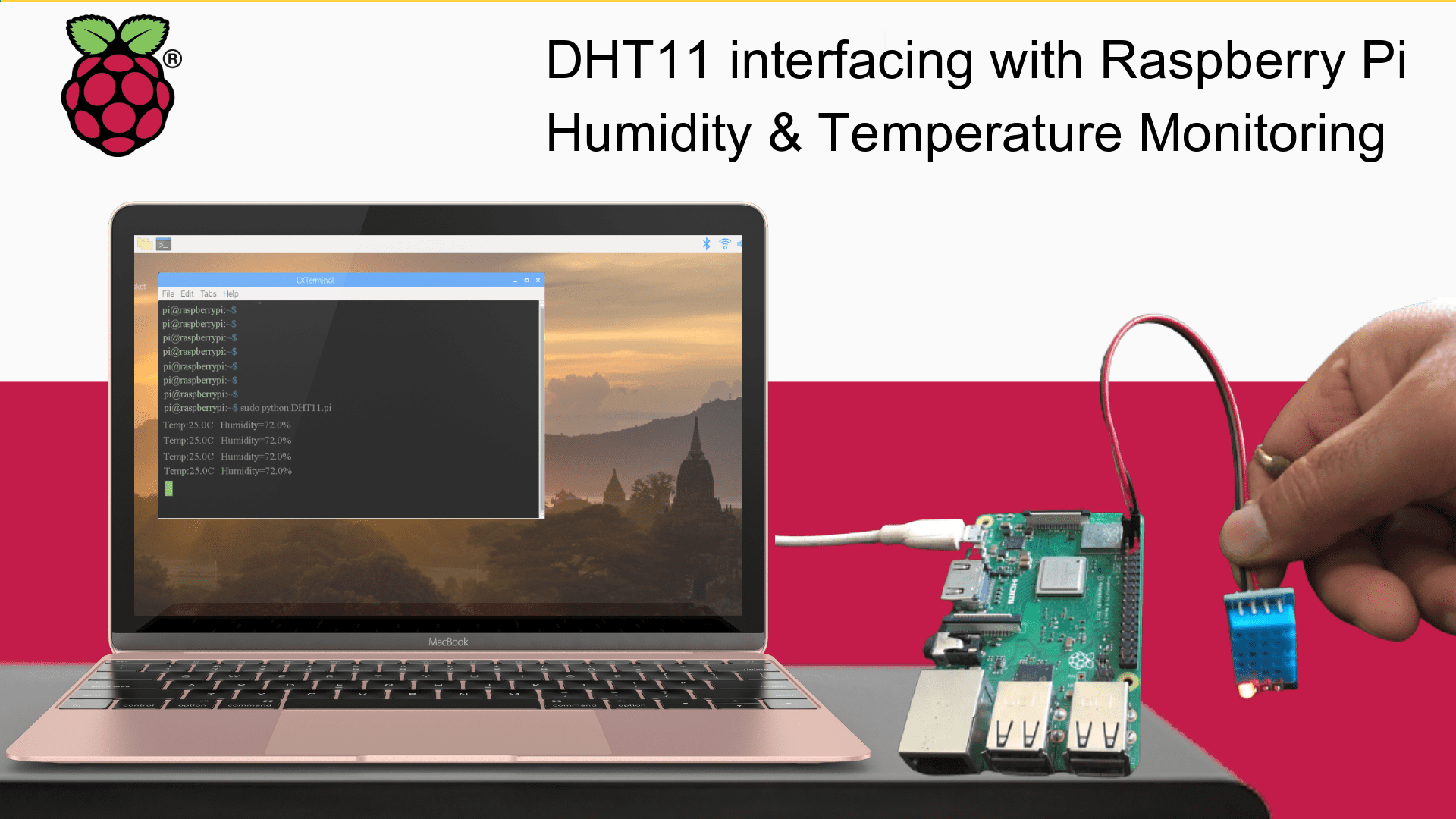
DHT11 Sensor interfacing with Raspberry Pi- Humidity & Temperature Monitoring

Watch the complete video tutorials on “How to get Humidity and Temperature data to raspberry pi using DHT11 sensor” at our YouTube channel.

This tutorial will guide you how you can interface the DHT11/ DHT22 Sensor with Raspberry Pi Board.

As we all of know that the DHT-11 Digital Temperature And Humidity Sensor is a basic, ultra low-cost digital temperature and humidity sensor. It uses a capacitive humidity sensor and a thermistor to measure the surrounding air and spits out a digital signal on the data pin (no analog input pins needed).

  • Humidity measuring range: 20%~90%RH(0~50 degree (temperature compensation).
  • Temperature measuring range: 0~+50degree.
  • Humidity measurement accuracy: ±5.0%RH.
  • Temperature measurement accuracy: ±2.0degree.
  • Low power consumption.
  • Relative humidity and temperature measurement
  • All calibration, digital output
  • Excellent long-term stability

As we know that Raspberry Pi is independent Operation system, based on Linux. Raspberry Pi is a series of small single-board computers (SBCs) developed in the United Kingdom by the Raspberry Pi Foundation in association with Broadcom.

For more details, visit to Raspberry Pi Wikipedia Page.

Let's interface the DHT11/DHT22 Sensor With Raspberry Pi Now.

So connect the DHT11/DHT22 Sensor with Raspberry Pi as shown in the Circuit Diagram.

DHT11/DHT22 pin connection with Raspberry Pi like shown in the Circuit Diagram:

  • DHT11/22 Sensor Vcc+ to 5V  pin of Raspberry Pi 
  • DHT11/22 Sensor GND to GND pin of Raspberry Pi
  • DHT11/22 Sensor Signal to GPIO4 no pin of Raspberry Pi
You will get the video tutorial for it soon. stay tuned at YouTube Channel

Now we need to install the DHT sensor poython library in the Raspberry Pi. 

but before that Python must be installed in your Raspberry Pi OS. If not installed, then you need to installed by the following commands in the LX Teminal: 

sudo apt update
sudo apt install python3-pip
sudo pip3 install --upgrade setuptools

Now install the DHT Sensor Pyhton Library:

sudo pip3 install Adafruit_DHT

Now, go to the Accessories and open the TextEditor. Copy the below code and paste in to the file.

Now save this file in the root folder with name as DHTsensor.py

Now, go to the Accessories and open the TextEditor. Copy the below code and paste in to the file.


import Adafruit_DHT
import time

DHT_SENSOR = Adafruit_DHT.DHT11
DHT_PIN = 4

while True:
humidity, temperature = Adafruit_DHT.read(DHT_SENSOR, DHT_PIN)
if humidity is not None and temperature is not None:
print("Temp={0:0.1f}C Humidity={1:0.1f}%".format(temperature, humidity))
else:
print("Sensor failure. Check wiring.");
time.sleep(2);

Now save this file in the root folder with name as DHTsensor.py

Once Saved, open the LX Terminal and Write this command:

Sudo python DHTsensor.py

Watch the complete video tutorials on “How to get Humidity and Temperature data to raspberry pi using DHT11 sensor” at our YouTube channel.

Posted on

How to install VNC Server in Raspberry Pi

As we know that Raspberry pi is independent Operation system, based on Linux. Raspberry pi is taking too much attachments like TFT/ Monitor Display, Keyboard, mouse to run.

So isn’t very easy that we just connect the Power Adaptor to the raspberry pi and we can directly access it to PC or Laptop without physically connectivity. Yes this is possible. We can possible it with the help of VNC.

So first of all you install the Raspbian OS in to your Raspberry Pi.

If you don’t know how to install Raspbian OS in Raspberry Pi, then you can see below video tutorial for help.


By default, VNC server preinstalled to the Raspbian OS (Dabian). But if not, then we need to install it manually. First verify, VNC Server has installed to your Raspberry Pi or not?


Go to the Menu > Preferences > Raspberry Pi Configuration > Interfaces in your Raspberry Pi.

If you found the VNC here, that means you have preinstalled VNC server in your Raspberry Pi OS. Otherwise follow the commands below to install the VNC Server.
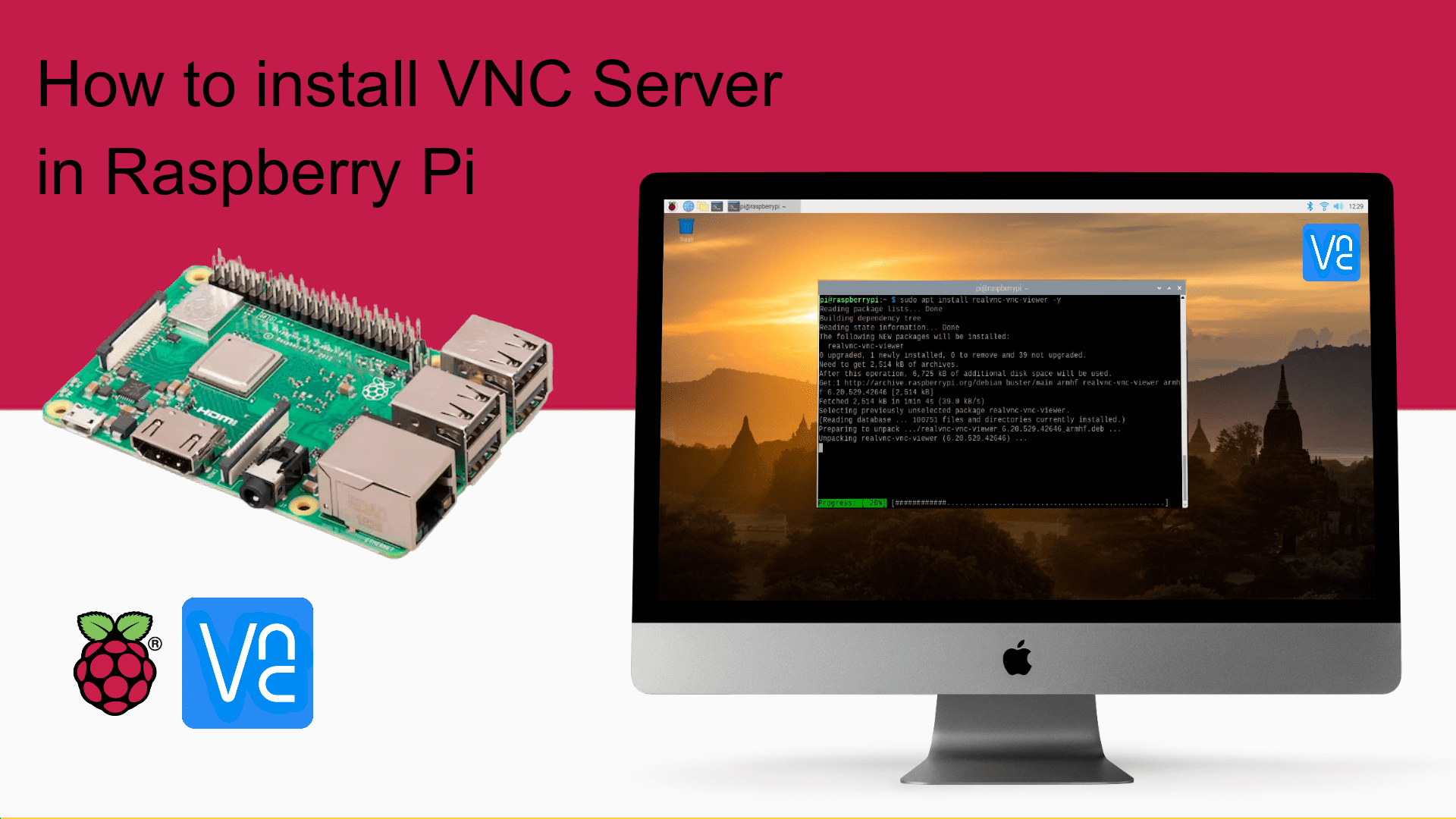
To install the VNC server to the Raspberry pi, Open the LX terminal in raspberry pi.

Write this command to update first:

sudo apt-get update

Once updated, then install the VNC server using this command-

sudo apt-get install realvnc-vnc-server

Once installed, go to the Menu > Preferences > Raspberry Pi Configuration > Interfaces in your Raspberry Pi.

Enable the VNC by toggle button and click on the ok.

Once you enable the VNC, you will get the VNC logo in your Raspberry Pi Desktop. Now you can access your Raspberry pi using VNC Server.

Now install the VNC viewer in your pc and access the raspberry pi through its ip address.


We will update the complete video Guide that will help you to access the Raspberry pi wirelessly using VNC Server soon.

Posted on

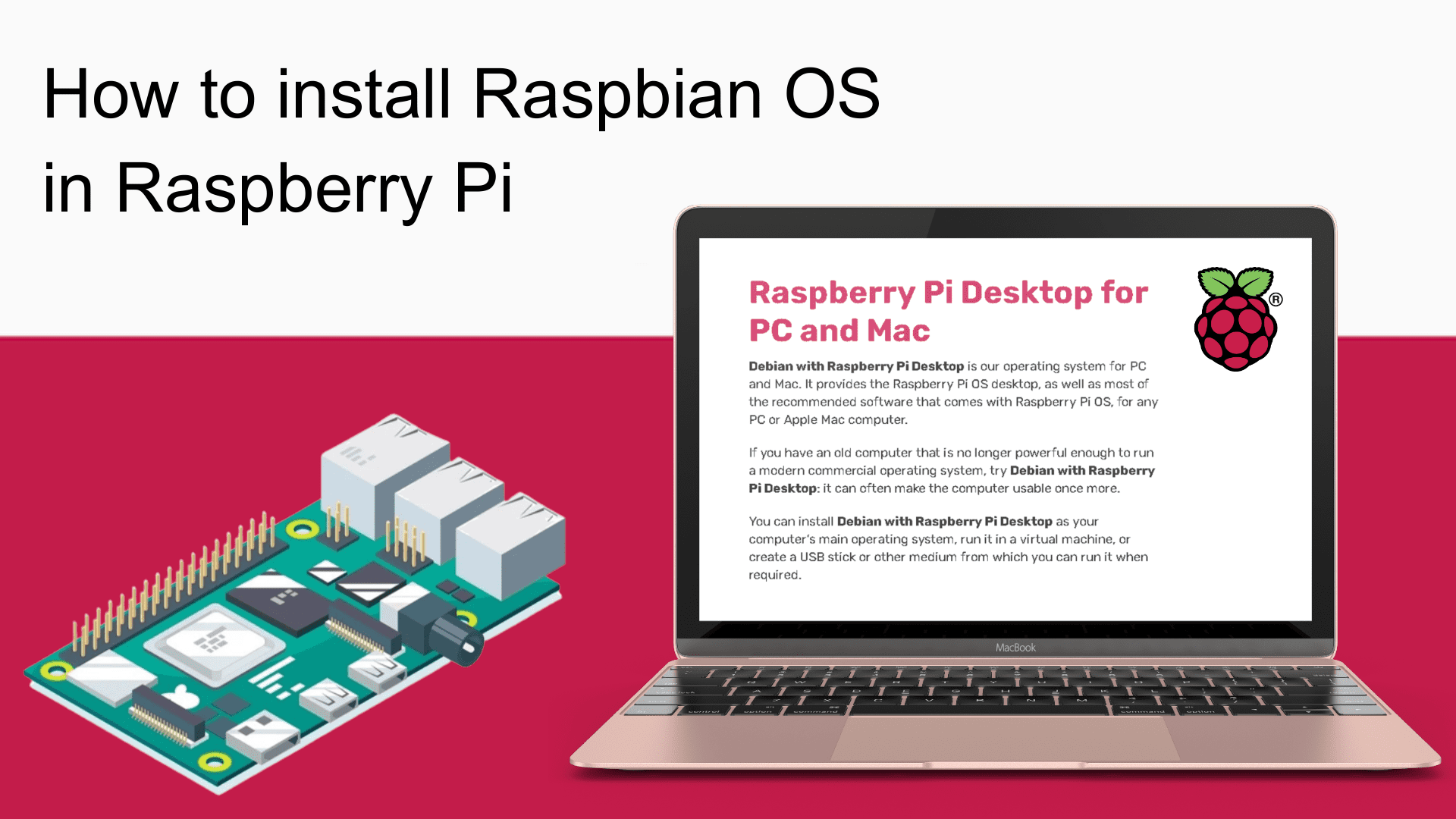
How to install Raspberry Pi Desktop OS in Raspberry Pi- Getting Started

Hello Guys, there are lots of the tutorials are available to install the Raspberry Pi OS. But believe me, I will show you the shortest way to install it.

So first of all, download the Raspbian OS Boot Image file.

You need minimum 16GB MicroSD card and USB SD Card Reader.

Download the SD Card Formatter and install it.  Insert the 16/32GB Micro SD Card to your computer using Micro SD Card reader and Open the SD Card Formatter.

Now Download and install the Win32 Disk Imager software and open it.

Now select the Raspbian OS image file that you have just downloaded. And click on the write button to write it to the Micro SD Card.

It will take 2-3 minute to write the Raspbian OS to the Micro SD Card.

Once it’s done. then disconnect the Micro Sd Card from the laptop and insert it to the Raspberry pi.

Now connect the Raspberry pi to the TFT Display using HDMI to VGA Converter. Connect the USB Keyboard and Mouse to the Rspberry pi.

Once power up the raspberry pi, it’s display the screen like this.

Your Raspberry Pi Desktop is ready to use.

Now configure the Raspberry Pi as per your requirements.  You can check the Raspberry Pi version as well as other information using Lx terminal through these commands.

  • to install the rpi-update utility- sudo apt install rpi-update
  • command to know the RPI Version? cat /etc/os-release

For any query, write to us.