Posted on

How to install NuttyFi2.0 Wifi IoT Board in Arduino IDE

The NuttyFi2.0 development board has its own dedicated Arduino Board Manager package. This means you can install board support directly using a custom Board Manager JSON — no need to manually pick a generic ESP32 board.

Unlike the official ESP32 package (which installs many ESP32 board definitions and increases storage usage), NuttyFi2.0 uses an independent board package, designed exclusively for NuttyFi2.0 hardware. This keeps installation lightweight, fast, and easy to manage, without unnecessary boards. It’s perfect for developers who prefer a clean, minimal, and focused development setup.

Below are step-by-step instructions to install and start using NuttyFi2.0 in Arduino IDE.

🛠 Step 1: Install Arduino IDE

  1. Download and install the latest Arduino IDE from:
    https://www.arduino.cc/en/software

  2. Launch the Arduino IDE after installation.

🔗 Step 2: Add NuttyFi2.0 Board Manager URL

  • In Arduino IDE go to:Go to:

    • Windows / Linux: File → Preferences

    • macOS: Arduino IDE → Settings / Preferences

  • In Additional Boards Manager URLs, paste the following NuttyFi2.0 Board Manager link.
    • File → Preferences
https://raw.githubusercontent.com/itsbhupendrasingh/Nuttyfi/main/package/package_nuttyfi_index.json
  • Click OK.

Note: If you already have one or more URLs there, separate each with a comma.

If you want to install NuttyFi32 Board in your Arduino IDE, then just follow our another tutorial guide on How to install NuttyFi32 Board in Arduino IDE.

📥 Step 3: Install NuttyFi2.0 Board Package

  • Go to:

     
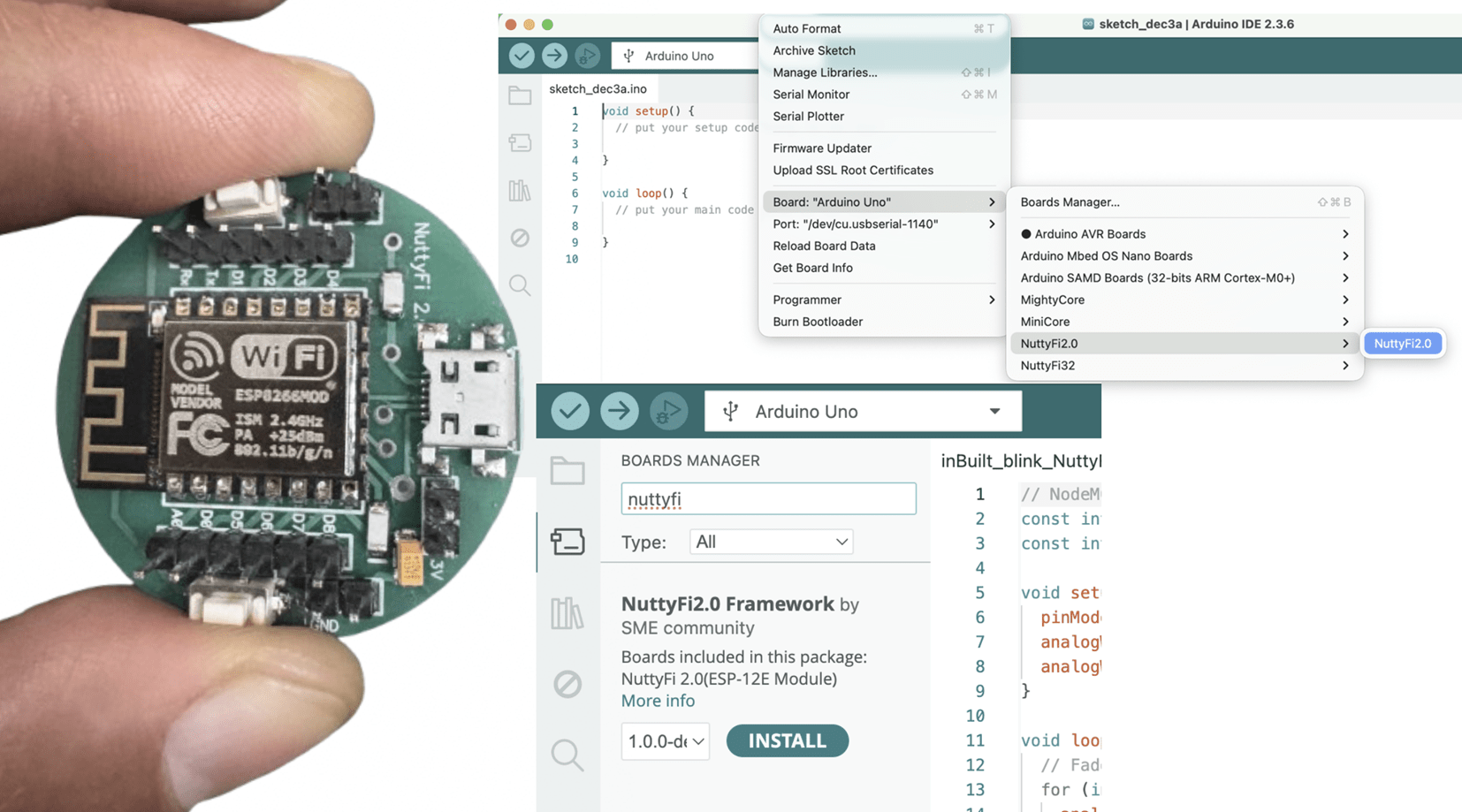
    Tools → Board → Boards Manager

Step 4: Open Boards Manager → Tools → Board → Boards Manager…

  • In the search bar type:

     
    NuttyFi2.0

  • When the board package appears, click →  Install.

  • Wait for installation to finish.

🧠 Step 4: Select NuttyFi2.0 Board

  1. Go to:

     
    Tools → Board
  2. Scroll down and select:

     
    NuttyFi2.0

💡 This loads NuttyFi2.0-specific settings (flash size, CPU, partition scheme).


🖥 Step 5: Connect Your Board and Select COM Port

  • Connect NuttyFi2.0 to your computer using a USB cable.

  • Go to:

     
    Tools → Port
  • Select the appropriate port:

    • Windows: COMx (e.g., COM4)

    • macOS/Linux: /dev/ttyUSBx or /dev/ttyACMx


⚠️ Note: The COM port shown in examples may differ on your computer. Always select the one that appears when NuttyFi2.0 is connected.

🧑‍💻 Step 6: USB Driver Installation (If Needed)

If your computer does not detect the board, you may need drivers depending on the USB-to-UART chip used:

Note: Still the NuttyFi2.0 board does not appear in the COM port list or you face USB driver issues, please watch this troubleshooting video below:

🧪 Step 8: Upload a Test Sketch

Let’s verify the NuttyFi2.0 board by running a simple test program.

✅ Led Blink Test Sketch (inbuilt).

Copy the code below and paste it into the Arduino IDE. Upload the sketch to the NuttyFi2.0 board.

After successful upload, the on-board LED will blink at an interval of 500 ms (half a second), confirming that the board is working correctly.

Test Sketch (Blink)

// Minimal Blink for NuttyFi2.0 inbuilt Led

#ifndef LED_BUILTIN
#define LED_BUILTIN D4 // LED is on GPIO2
#endif

void setup(){
  pinMode(LED_BUILTIN, OUTPUT);
}

void loop(){
  digitalWrite(LED_BUILTIN, !digitalRead(LED_BUILTIN));
  delay(500);
}
  

✅ LED Fade Test Sketch (inbuilt)

This example demonstrates PWM-based LED fading on the NuttyFi2.0 board.

Copy the code below and paste it into the Arduino IDE, then upload the sketch to the NuttyFi2.0 board.

After a successful upload, the on-board LED will gradually fade in and fade out, verifying PWM functionality and confirming that the board is operating correctly.

LED Fade (NuttyFi2.0 IoT Board)

// NuttyFi2.0 IoT Board onboard LED (GPIO2 / D4), active-LOW
const int LED_PIN = D4;     // or use LED_BUILTIN
const int PWM_MAX = 1023;   // Nuttyfi2.0 analogWrite range (0..1023)

void setup() {
  pinMode(LED_PIN, OUTPUT);
  analogWriteRange(PWM_MAX);
  analogWriteFreq(1000);    // 1 kHz (optional)
}

void loop() {
  // Fade IN (dim -> bright)
  for (int b = 0; b <= PWM_MAX; b += 5) {
    analogWrite(LED_PIN, PWM_MAX - b); // invert for active-LOW
    delay(5);
  }
  // Fade OUT (bright -> dim)
  for (int b = PWM_MAX; b >= 0; b -= 5) {
    analogWrite(LED_PIN, PWM_MAX - b); // invert for active-LOW
    delay(5);
  }
}
  

⭐ NuttyFi2.0 Resources

For source code, board packages, updates, and documentation, visit the official NuttyFi GitHub repository:
Posted on

How to Install the NuttyFi32 Board in Arduino IDE

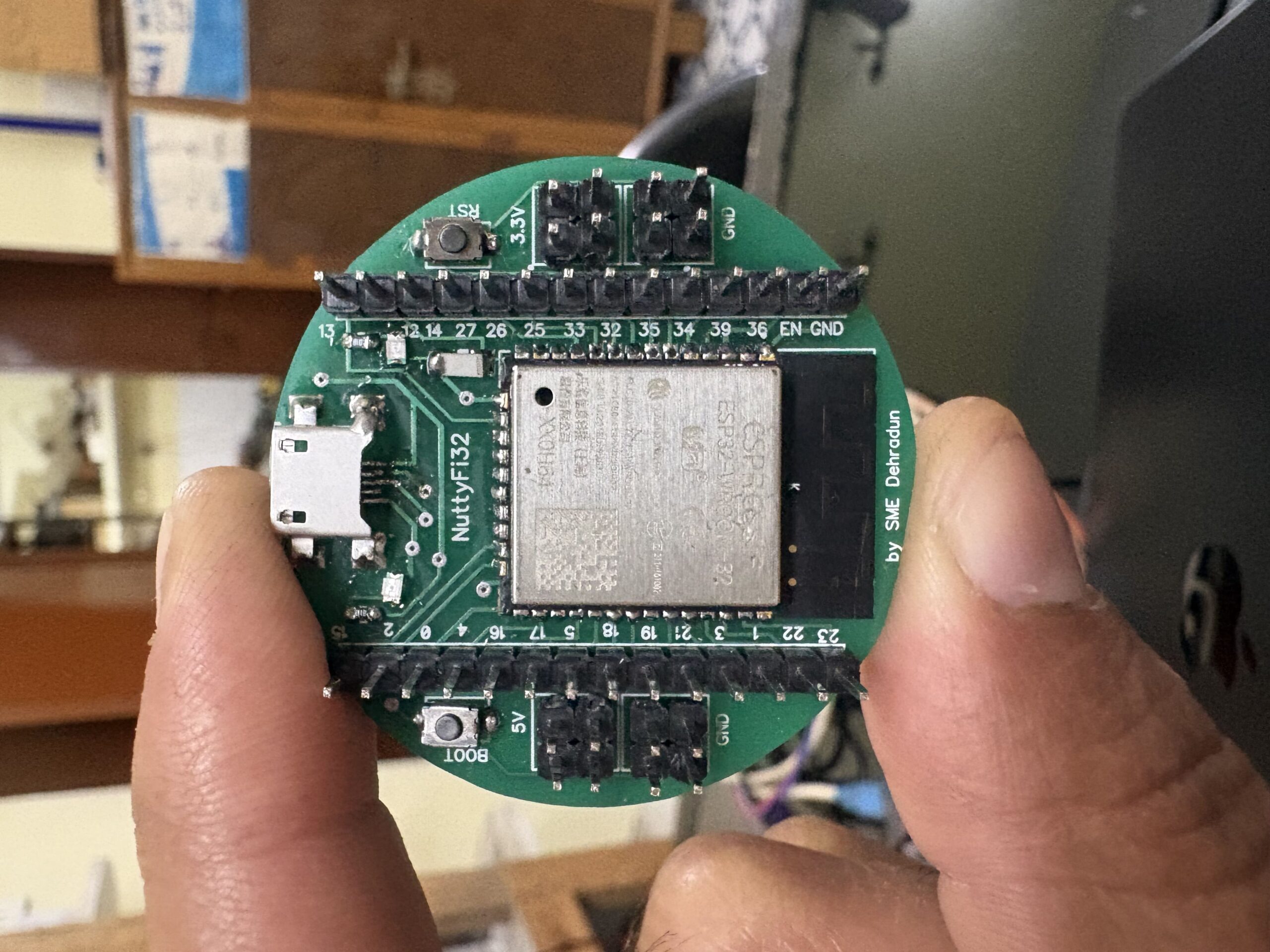
The NuttyFi32 board has its own dedicated Arduino Board Package, allowing users to install board support directly using a custom Board Manager JSON—without selecting a generic ESP32 board.

While the official ESP32 board package installs support for multiple ESP32 boards, increasing storage usage and IDE complexity, NuttyFi32 uses an independent and board-specific package.

This keeps the installation lightweight, fast, and easy to manage, making NuttyFi32 ideal for developers who prefer a clean and focused Arduino development environment.

Follow the below steps

✅ Step 1: Install Arduino IDE

  1. Download and install the latest Arduino IDE:
    👉 https://www.arduino.cc/en/software

  2. Launch the Arduino IDE.

✅ Step 2: Add the NuttyFi32 Board Manager URL
  1. In Arduino IDE go to:

     
    File → Preferences

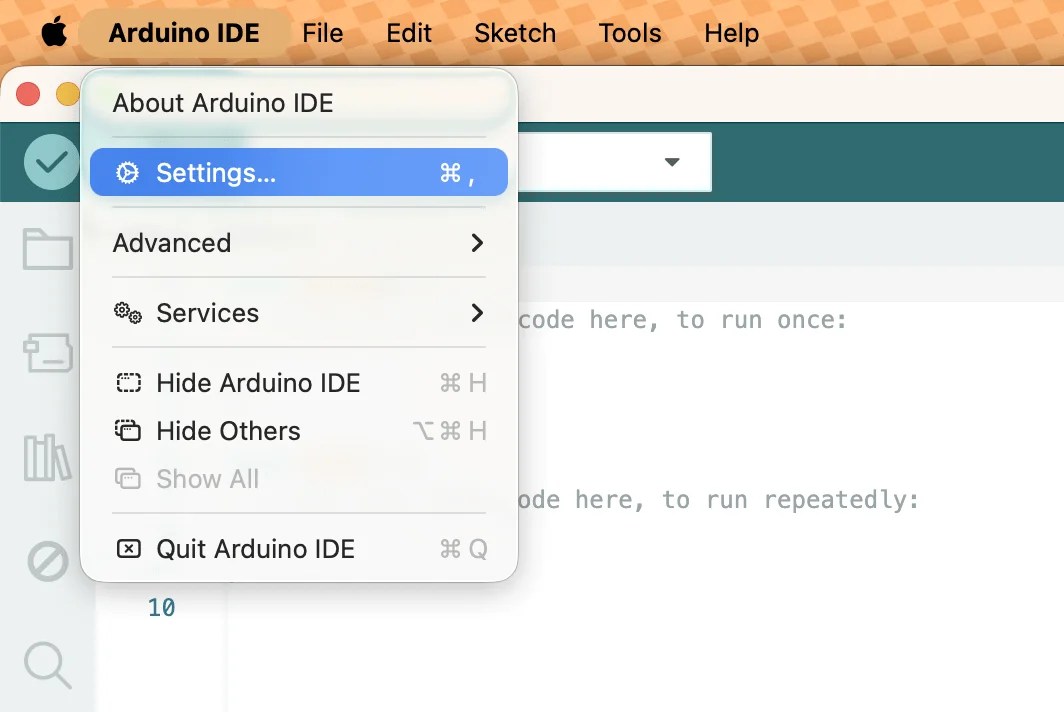
Note: If you are using MacOS: Arduino IDE, Then: Settings

2. Find the field labeled:
Additional Boards Manager URLs

3. Add this URL:

https://raw.githubusercontent.com/itsbhupendrasingh/nuttyfi32/Master/package_nuttyfi32_index.json

Tip: Arduino IDE supports multiple Additional URLs. Put each on a new line (IDE 2.x) or separate with commas (IDE 1.8.x).

Like- https://raw.githubusercontent.com/itsbhupendrasingh/Nuttyfi/main/package/package_nuttyfi_index.json, https://raw.githubusercontent.com/itsbhupendrasingh/nuttyfi32/Master/package_nuttyfi32_index.json,

  1. Click OK.

If you want to install NuttyFi2.0 Board in your Arduino IDE, then just follow our another tutorial guide on How to install NuttyFi2.0 Board in Arduino IDE.

✅ Step 3: Install NuttyFi32 Board Package

  • Go to:

    Tools → Board → Boards Manager
  • In the search bar type:

    nuttyfi32
  • When the NuttyFi32 board package appears, click:

    install
  • Wait for the installation to complete.

✅ Step 4: Select NuttyFi32 Board

  1. Go to: 

    Tools → Board
  2. Scroll down the list and choose:

     
    NuttyFi32

This ensures all board-specific configurations (flash size, CPU settings, partitions, etc.) are correct.

🪛 Step 5: Select COM Port

  1. Connect your NuttyFi32 board via USB-C cable.

  2. Go to:

     
    Tools → Port
  3. Select the port assigned to the board
    (e.g., COM5 on Windows or /dev/ttyUSB0 on Linux/macOS).

Note: The COM port shown in the example image may be different on your system. Always select the port that appears when the NuttyFi32 board is connected.

🧑‍💻 Step 6: USB Driver Installation (If Needed)

If your computer does not detect the board, you may need to install NuttyFi32 USB-to-UART drivers. 

Note: Still the NuttyFi32 board does not appear in the COM port list or you face USB driver issues, please watch this troubleshooting video below:

🧪 Step 8: Upload a Test Sketch

Let’s verify the NuttyFi32 board by running a simple test program.

✅ Led Blink Test Sketch (inbuilt).

Copy the code below and paste it into the Arduino IDE. Upload the sketch to the NuttyFi32 board.

After successful upload, the on-board LED will blink at an interval of 1000ms (1 second), confirming that the board is working correctly.

✅  Open the Serial Monitor at 115200 baud to view the LED status messages.

Test Sketch (Blink)

// Minimal Blink for NuttyFi32 inbuilt Led

#const int LED_PIN = 13;   // NuttyFi32 built-in LED

void setup() {
  Serial.begin(115200);
  delay(50);
  Serial.println("Simple blink start on NuttyFi32");
  pinMode(LED_PIN, OUTPUT);
}

void loop() {
  digitalWrite(LED_PIN, HIGH);   // LED ON
  Serial.println("LED ON");
  delay(1000);

  digitalWrite(LED_PIN, LOW);    // LED OFF
  Serial.println("LED OFF");
  delay(1000);
}


✅ LED Fade Test Sketch (inbuilt)

This example demonstrates PWM-based LED fading on the NuttyFi32 board using the ESP32 LEDC (LED Control) peripheral.

Copy the code below and paste it into the Arduino IDE, then upload the sketch to the NuttyFi32 board.

After a successful upload, the on-board LED connected to GPIO 13 will gradually fade in and fade out, verifying PWM functionality and confirming that the NuttyFi32 board is operating correctly.

✅  Open the Serial Monitor at 115200 baud to view the LED status messages.

LED Fade (NuttyFi IoT Board)

// NuttyFi32 IoT Board onboard LED (GPIO13), active-LOW

const int LED_PIN = 13;      // Built-in LED on NuttyFi32
const int PWM_CH = 0;        // Channel 0–15
const int PWM_FREQ = 5000;   // 5 kHz
const int PWM_RES = 8;       // 8-bit (0–255)

int brightness = 0;
int fadeAmount = 5;

void setup() {
  Serial.begin(115200);
  delay(200);   // small delay for serial monitor

  Serial.println("NuttyFi32 LED Fade Example Started");

  ledcSetup(PWM_CH, PWM_FREQ, PWM_RES);
  ledcAttachPin(LED_PIN, PWM_CH);
}

void loop() {
  ledcWrite(PWM_CH, brightness);

  // print current brightness
  Serial.print("Brightness: ");
  Serial.println(brightness);

  brightness += fadeAmount;

  if (brightness <= 0 || brightness >= 255) {
    fadeAmount = -fadeAmount;
  }

  delay(30);
}


⭐ NuttyFi2.0 Resources

For source code, board packages, updates, and documentation, visit the official NuttyFi GitHub repository:
Posted on

Step-by-Step Guide to Install New Blynk2.0 Python Library in Raspberry Pi

This tutorial will guide you how you can install the New Blynk2.0 Python Library in Raspberry Pi .

So Open the LX Terminal Window in the Raspberry pi desktop.

Once installed, then you need to install the New Blynk library through below command.

git clone https://github.com/vshymanskyy/blynk-library-python.git

This command will install the copy of the Blynk Python Library folder inside the root folder of your the Raspberry PI. Once its done. you can find the Blynk Library folder Like below image.

Now you can compile any blynk programming code inside this blynk-library-python folder.

For innovation video on the projects, you can go to our YouTube channel at https://www.youtube.com/@smedehradun

Posted on

DHT11 Sensor Data to New blynk2.0 IoT using Raspberry Pi

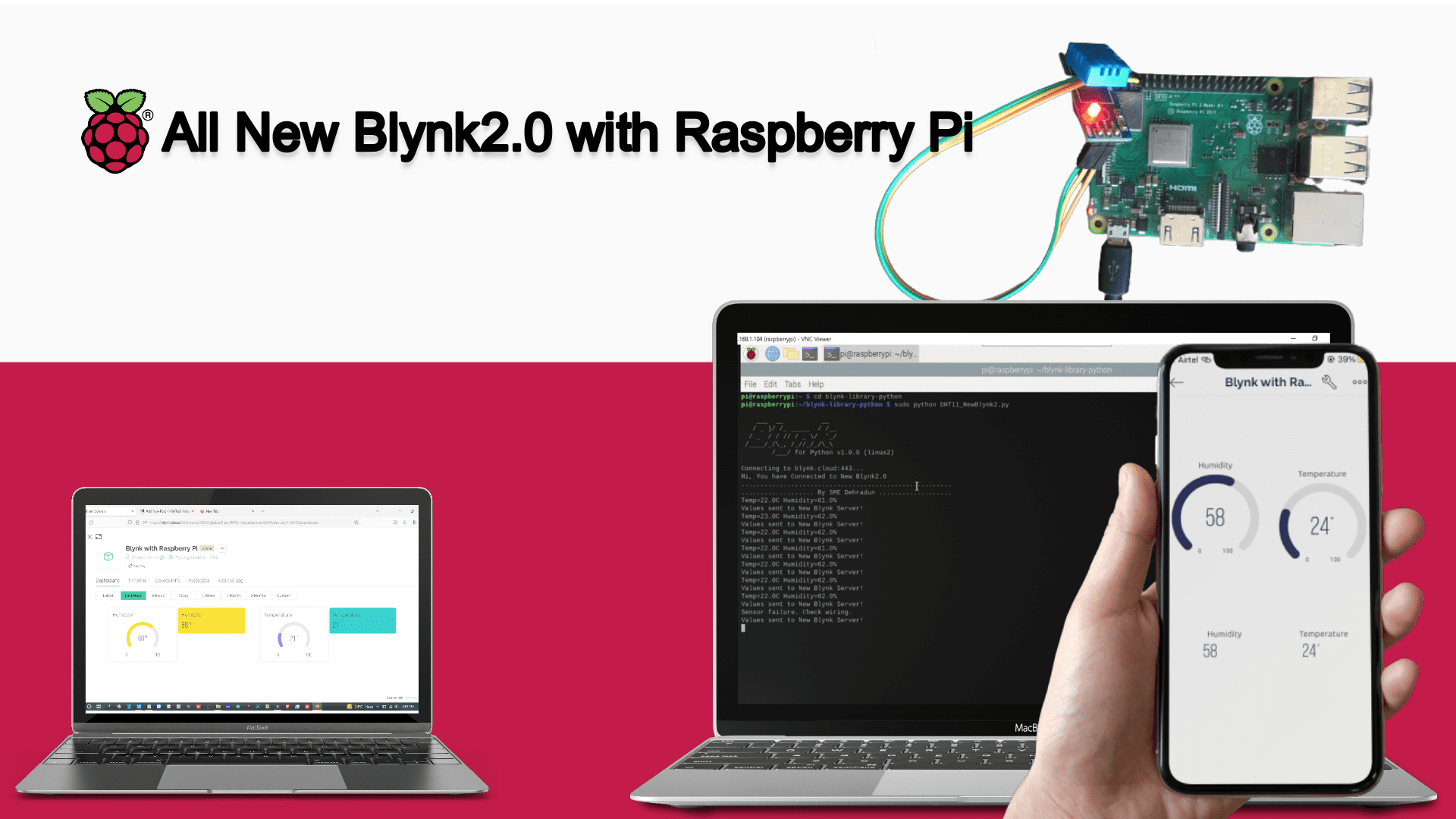
This tutorial will guide you how you can connect Raspberry Pi with New Blynk2.0 IoT App and Web Dashboard..

So connect the DHT11/DHT22 Sensor with Raspberry pi as  per this circuit diagram.

Now, install the DHT sensor poython library in the Raspberry Pi through the below commands.

sudo pip3 install Adafruit_DHT

If you are getting any problem to install the DHT sensor library, Watch the complete video tutorials on “How to get Humidity and Temperature data to raspberry pi using DHT11 sensor”.

Once installed, then you need to install the New Blynk library through below command.

git clone https://github.com/vshymanskyy/blynk-library-python.git

After the installation of blynk library, you need to create the text file using TextEditor. So go to the Accessories and open the TextEditor. Copy the below code and paste in to the file.

Now, go to the Accessories and open the TextEditor. Copy the below code and paste in to the file.

After that, save this file in the inside the Blynk Library folder with name as DHT11_NewBlynk2.py

"""
This Code is belong to SME Dehraun. for any query write to schematicslab@gmail.com

"""

import BlynkLib
import RPi.GPIO as GPIO
from BlynkTimer import BlynkTimer

import Adafruit_DHT
import time

DHT_SENSOR = Adafruit_DHT.DHT11
DHT_PIN = 4
#BLYNK_AUTH_TOKEN = 'kt85ldXRL362juNQiymMClUUxdsuygTN'
BLYNK_AUTH_TOKEN = 'jsfpl_ACPJIVDdkFJ9THE5PkCVvYR8FS'

# Initialize Blynk
blynk = BlynkLib.Blynk(BLYNK_AUTH_TOKEN)

# Create BlynkTimer Instance
timer = BlynkTimer()


# function to sync the data from virtual pins
@blynk.on("connected")
def blynk_connected():
print("Hi, You have Connected to New Blynk2.0")
print(".......................................................")
print("................... By SME Dehradun ...................")
time.sleep(2);

# Functon for collect data from sensor & send it to Server
def myData():
humidity, temperature = Adafruit_DHT.read(DHT_SENSOR, DHT_PIN)
if humidity is not None and temperature is not None:
print("Temp={0:0.1f}C Humidity={1:0.1f}%".format(temperature, humidity))
else:
print("Sensor failure. Check wiring.");

blynk.virtual_write(0, humidity,)
blynk.virtual_write(1, temperature)
print("Values sent to New Blynk Server!")

timer.set_interval(2, myData)


while True:
blynk.run()
timer.run()


So we have successfully save our program. Now time to run the program in the Terminal and send the Humidity & Temperature values to New Blynk2.0 IoT app and Web Dashboard.

So run the following command to run the program.


cd blynk-library-python
sudo python DHT11_NewBlynk2.py

After running the command, You will get the output in the serial like this.


Now you can see the humidity and Temperature Values in the New Blynk Web Dashboard like this.

You can also see the data in New Blynk Mobile App.

Watch the Video Tutorial- How to connect the Raspberry with New Blynk2.0.

Posted on

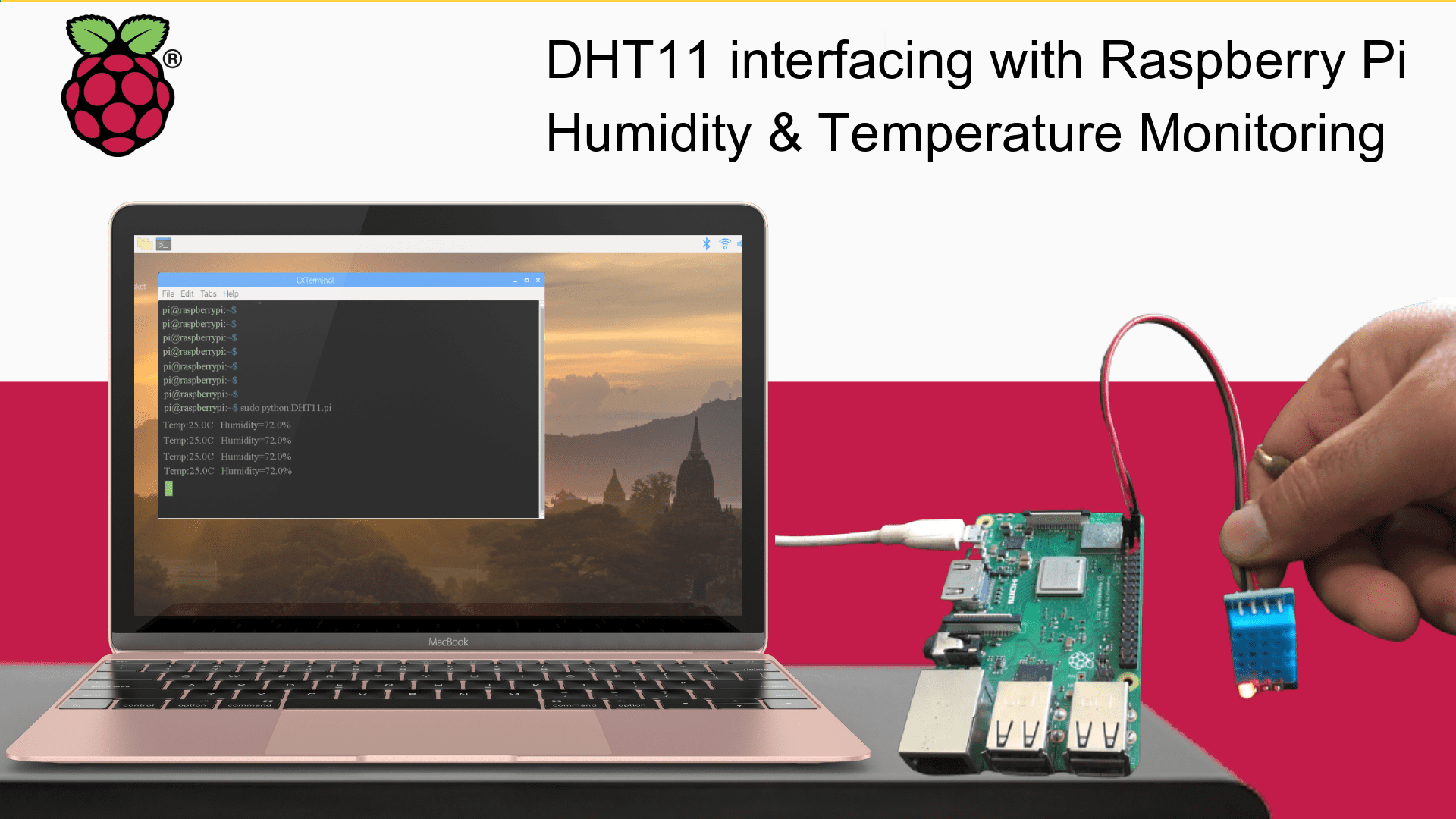
DHT11 Sensor interfacing with Raspberry Pi- Humidity & Temperature Monitoring

Watch the complete video tutorials on “How to get Humidity and Temperature data to raspberry pi using DHT11 sensor” at our YouTube channel.

This tutorial will guide you how you can interface the DHT11/ DHT22 Sensor with Raspberry Pi Board.

As we all of know that the DHT-11 Digital Temperature And Humidity Sensor is a basic, ultra low-cost digital temperature and humidity sensor. It uses a capacitive humidity sensor and a thermistor to measure the surrounding air and spits out a digital signal on the data pin (no analog input pins needed).

  • Humidity measuring range: 20%~90%RH(0~50 degree (temperature compensation).
  • Temperature measuring range: 0~+50degree.
  • Humidity measurement accuracy: ±5.0%RH.
  • Temperature measurement accuracy: ±2.0degree.
  • Low power consumption.
  • Relative humidity and temperature measurement
  • All calibration, digital output
  • Excellent long-term stability

As we know that Raspberry Pi is independent Operation system, based on Linux. Raspberry Pi is a series of small single-board computers (SBCs) developed in the United Kingdom by the Raspberry Pi Foundation in association with Broadcom.

For more details, visit to Raspberry Pi Wikipedia Page.

Let's interface the DHT11/DHT22 Sensor With Raspberry Pi Now.

So connect the DHT11/DHT22 Sensor with Raspberry Pi as shown in the Circuit Diagram.

DHT11/DHT22 pin connection with Raspberry Pi like shown in the Circuit Diagram:

  • DHT11/22 Sensor Vcc+ to 5V  pin of Raspberry Pi 
  • DHT11/22 Sensor GND to GND pin of Raspberry Pi
  • DHT11/22 Sensor Signal to GPIO4 no pin of Raspberry Pi
You will get the video tutorial for it soon. stay tuned at YouTube Channel

Now we need to install the DHT sensor poython library in the Raspberry Pi. 

but before that Python must be installed in your Raspberry Pi OS. If not installed, then you need to installed by the following commands in the LX Teminal: 

sudo apt update
sudo apt install python3-pip
sudo pip3 install --upgrade setuptools

Now install the DHT Sensor Pyhton Library:

sudo pip3 install Adafruit_DHT

Now, go to the Accessories and open the TextEditor. Copy the below code and paste in to the file.

Now save this file in the root folder with name as DHTsensor.py

Now, go to the Accessories and open the TextEditor. Copy the below code and paste in to the file.


import Adafruit_DHT
import time

DHT_SENSOR = Adafruit_DHT.DHT11
DHT_PIN = 4

while True:
humidity, temperature = Adafruit_DHT.read(DHT_SENSOR, DHT_PIN)
if humidity is not None and temperature is not None:
print("Temp={0:0.1f}C Humidity={1:0.1f}%".format(temperature, humidity))
else:
print("Sensor failure. Check wiring.");
time.sleep(2);

Now save this file in the root folder with name as DHTsensor.py

Once Saved, open the LX Terminal and Write this command:

Sudo python DHTsensor.py

Watch the complete video tutorials on “How to get Humidity and Temperature data to raspberry pi using DHT11 sensor” at our YouTube channel.

Posted on

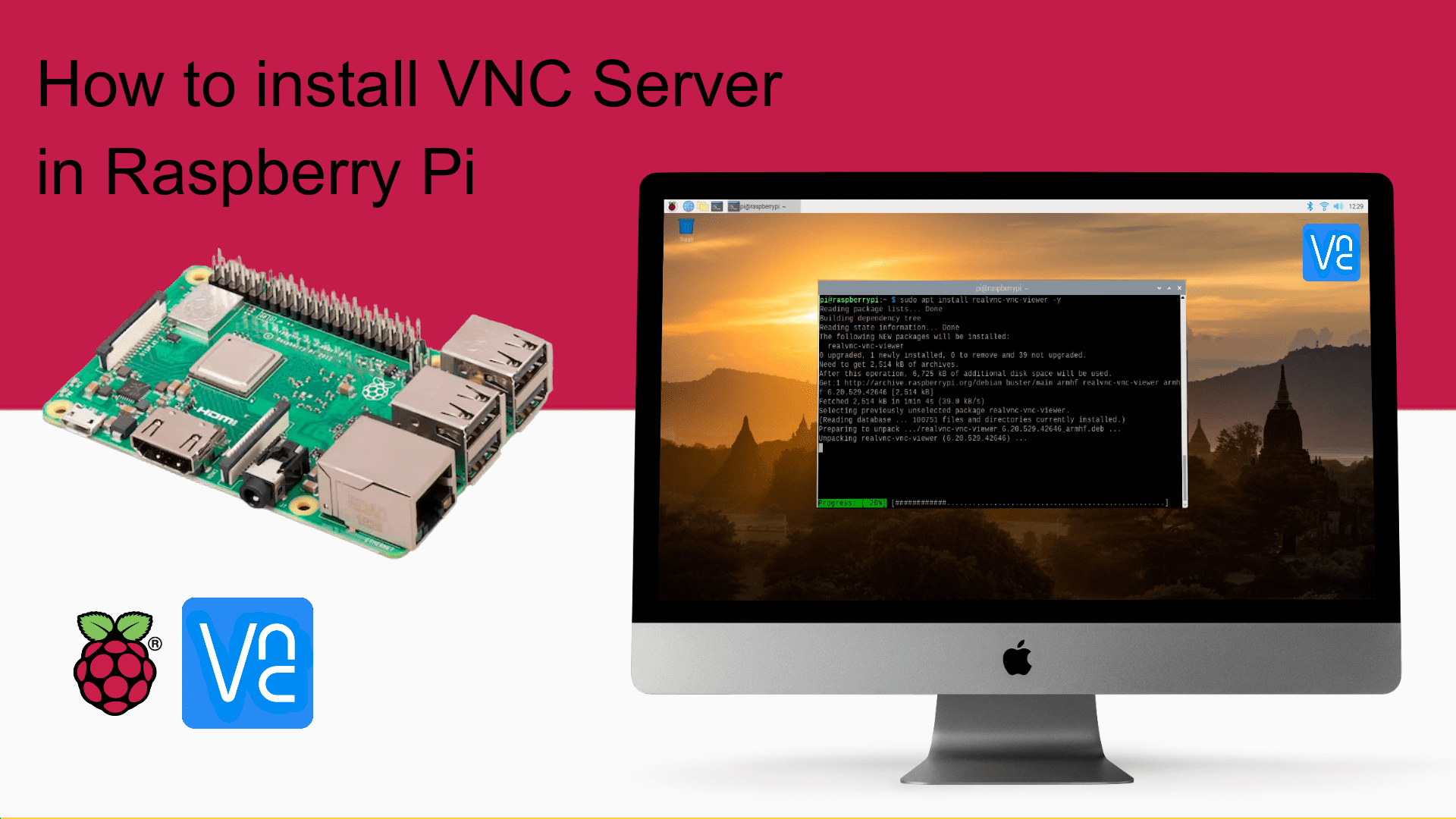
How to install VNC Server in Raspberry Pi

As we know that Raspberry pi is independent Operation system, based on Linux. Raspberry pi is taking too much attachments like TFT/ Monitor Display, Keyboard, mouse to run.

So isn’t very easy that we just connect the Power Adaptor to the raspberry pi and we can directly access it to PC or Laptop without physically connectivity. Yes this is possible. We can possible it with the help of VNC.

So first of all you install the Raspbian OS in to your Raspberry Pi.

If you don’t know how to install Raspbian OS in Raspberry Pi, then you can see below video tutorial for help.


By default, VNC server preinstalled to the Raspbian OS (Dabian). But if not, then we need to install it manually. First verify, VNC Server has installed to your Raspberry Pi or not?


Go to the Menu > Preferences > Raspberry Pi Configuration > Interfaces in your Raspberry Pi.

If you found the VNC here, that means you have preinstalled VNC server in your Raspberry Pi OS. Otherwise follow the commands below to install the VNC Server.

To install the VNC server to the Raspberry pi, Open the LX terminal in raspberry pi.

Write this command to update first:

sudo apt-get update

Once updated, then install the VNC server using this command-

sudo apt-get install realvnc-vnc-server

Once installed, go to the Menu > Preferences > Raspberry Pi Configuration > Interfaces in your Raspberry Pi.

Enable the VNC by toggle button and click on the ok.

Once you enable the VNC, you will get the VNC logo in your Raspberry Pi Desktop. Now you can access your Raspberry pi using VNC Server.

Now install the VNC viewer in your pc and access the raspberry pi through its ip address.


We will update the complete video Guide that will help you to access the Raspberry pi wirelessly using VNC Server soon.

Posted on

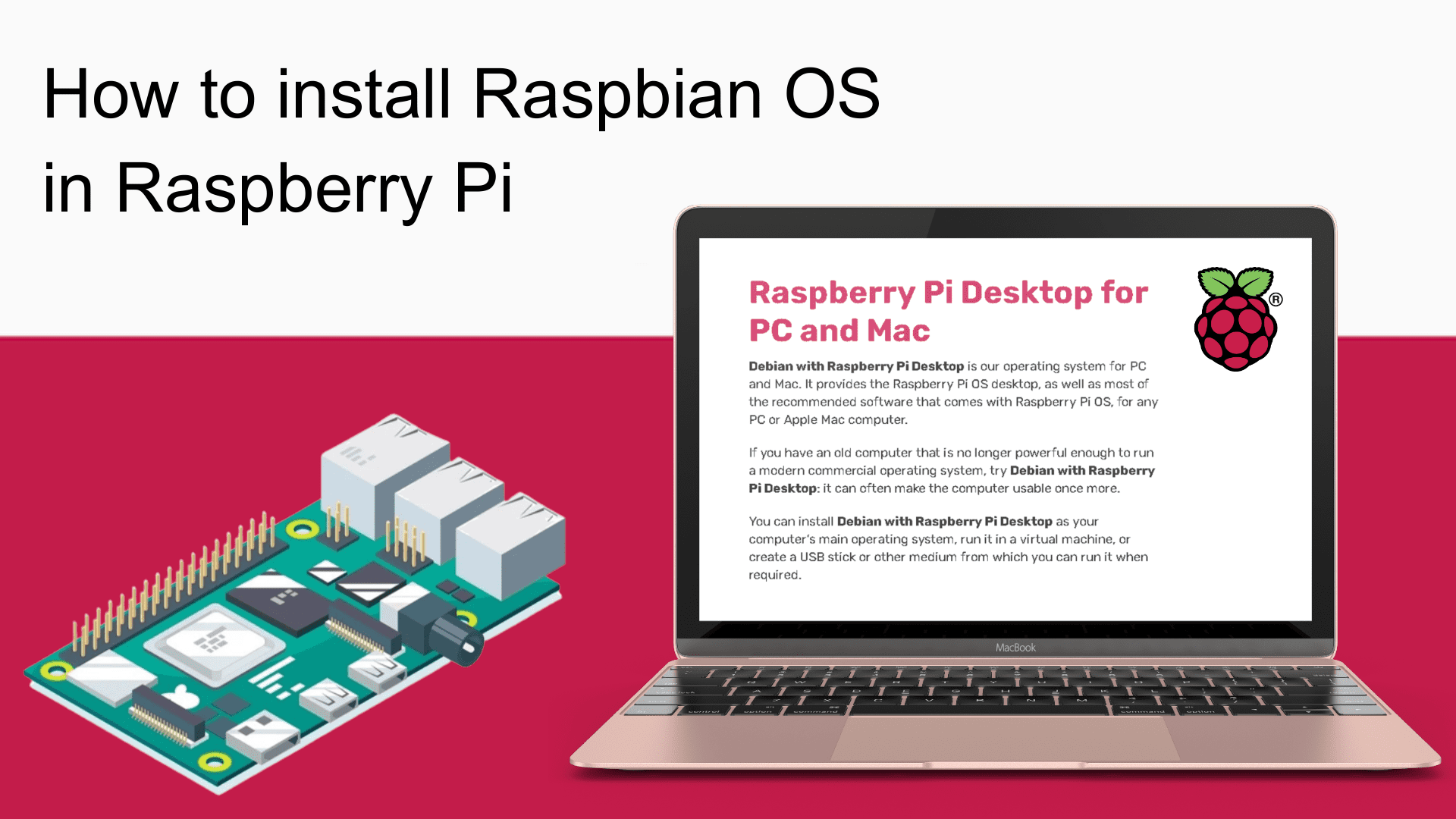
How to install Raspberry Pi Desktop OS in Raspberry Pi- Getting Started

Hello Guys, there are lots of the tutorials are available to install the Raspberry Pi OS. But believe me, I will show you the shortest way to install it.

So first of all, download the Raspbian OS Boot Image file.

You need minimum 16GB MicroSD card and USB SD Card Reader.

Download the SD Card Formatter and install it.  Insert the 16/32GB Micro SD Card to your computer using Micro SD Card reader and Open the SD Card Formatter.

Now Download and install the Win32 Disk Imager software and open it.

Now select the Raspbian OS image file that you have just downloaded. And click on the write button to write it to the Micro SD Card.

It will take 2-3 minute to write the Raspbian OS to the Micro SD Card.

Once it’s done. then disconnect the Micro Sd Card from the laptop and insert it to the Raspberry pi.

Now connect the Raspberry pi to the TFT Display using HDMI to VGA Converter. Connect the USB Keyboard and Mouse to the Rspberry pi.

Once power up the raspberry pi, it’s display the screen like this.

Your Raspberry Pi Desktop is ready to use.

Now configure the Raspberry Pi as per your requirements.  You can check the Raspberry Pi version as well as other information using Lx terminal through these commands.

  • to install the rpi-update utility- sudo apt install rpi-update
  • command to know the RPI Version? cat /etc/os-release

For any query, write to us.

Posted on

How to Install New Blynk Library in Arduino IDE

To install a new library into your Arduino IDE, you can use the Library Manager.

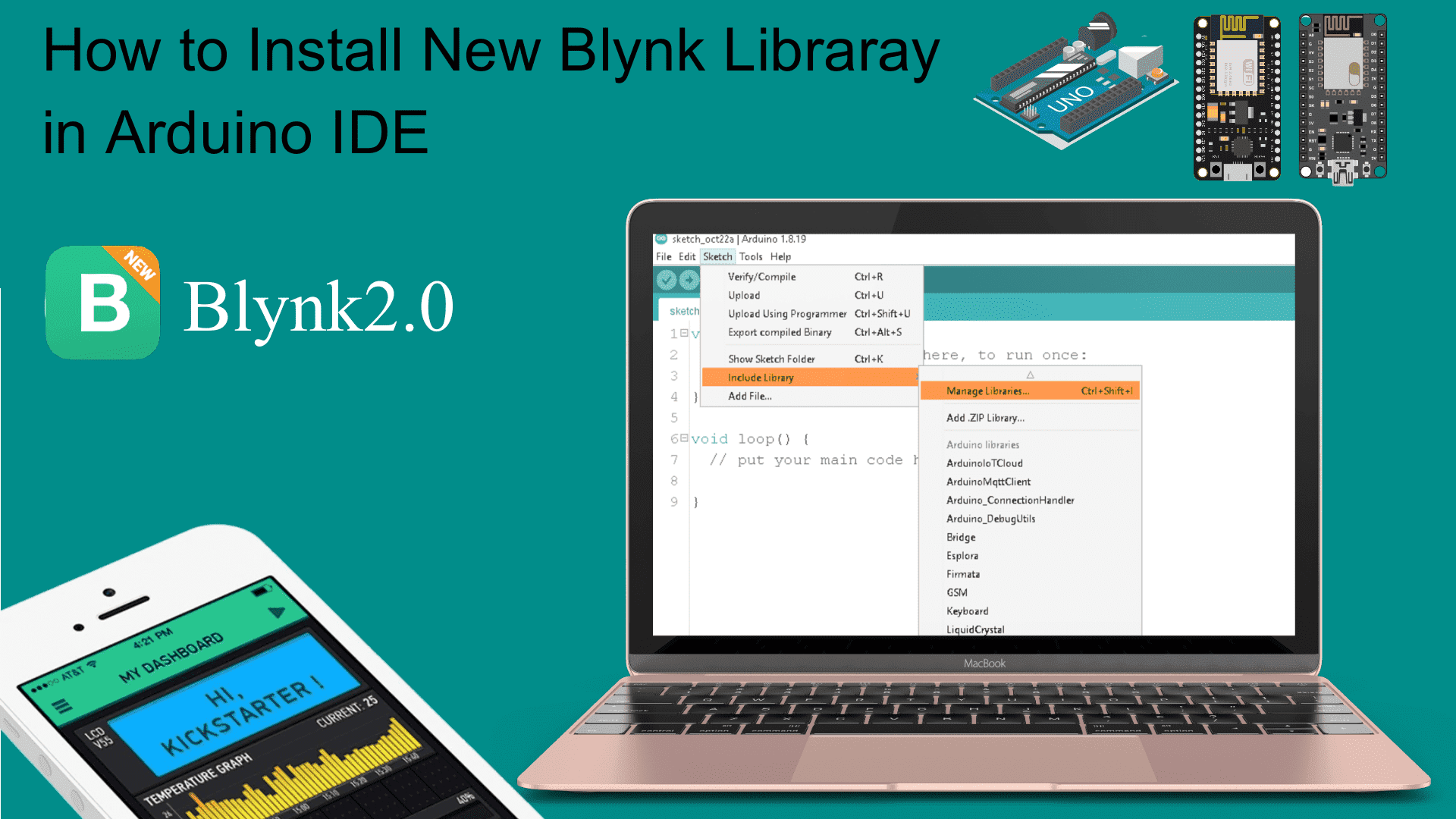
First, connect your computer o the Internet. Open the IDE and click to the “Sketch” menu and then Include Library > Manage Libraries.

Then the Library Manager will open and you will find a list of libraries that are already installed or ready for installation. Search for Blynk library and in the version selection choose the latest version to date.

Finally click on Install and wait for the IDE to install the new library. Downloading may take time depending on your connection speed. Once it has finished, an Installed tag should appear next to the Bridge library. You can close the library manager.
 
Follow the video tutorial And don’t forget to subscribe.
Posted on 1 Comment

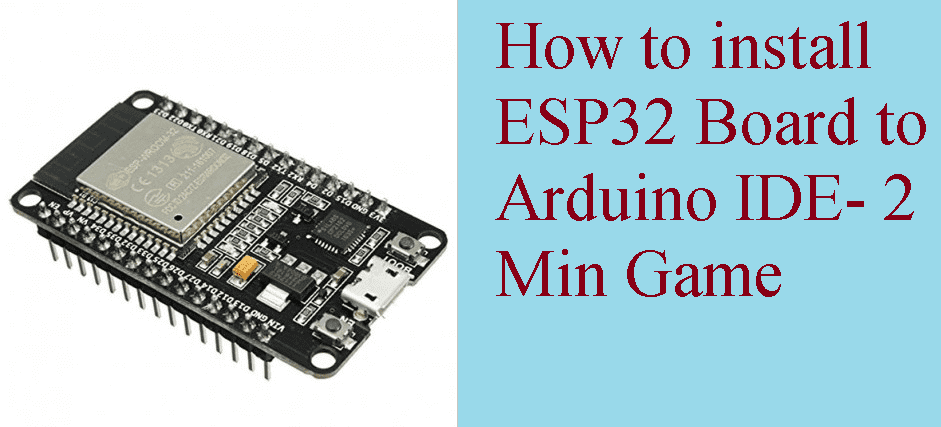
How to Install the ESP32 Board in Arduino IDE

ESP32 is another addon board for arduino like NodeMCU, that have more sound feature than NodeMCU.

So how we can install ESP32 board to Arduino IDE? Let’s start. Follow the below instruction.

So open your Arduino IDE software. If you don’t have Arduino IDE installed in your computer, then you can download it from this link (https://www.arduino.cc/en/Main/Software).

Step1- In your Arduino IDE, go to the file tab and then click on the preferences. 

Step2- Copy & paste this link https://dl.espressif.com/dl/package_esp32_index.json in to the Additional board Manager URLs:  and then click on ok.

Note: if you already installed NodeMCU ESP8266 board in your Arduino IDE, then you copy & paste this link to the Additional board Manager URLs-

https://dl.espressif.com/dl/package_esp32_index.json, http://arduino.esp8266.com/stable/package_esp8266com_index.json

Step3- Now, go to the Tools tab, then board and click on Board Manager as shown below: (you need internet to be connected in your computer)

Step4- Now, search for ESP32, you will get the board ESP32 by Espressif Systems. Click on the install button.

Step5- It will take little time to complete. Once finished, you will see like it. Click on the close button.

How to select ESP32 Board to upload the program

Go to the tools tab, click on the Boards and Scroll below, you will get the get the ESP32 Wrover Board. Select it and it’s done.

Now you can upload your program to ESP32 Board.

Now, you can upload your program to ESP32 Board. 

So this is how you can select & upload the program to ESP32 board. 

Posted on Leave a comment

How to Install and Program any Customized board with Arduino IDE- Arduino Compatible boards only

This tutorial will teach you how to install download, install, and testing the Arduino software( Arduino IDE) & then how to install Nutty ATmel ATmega328 Board to Arduino Software.

Now, talk about primary requirements. You need

Step1. 

Download the Arduino Software from arduino official site & scroll down. you will see the arduino downloading option. click on “Window Installer, for window XP and up” as shown in image below.  Now arduino software will start download.


Step2. 

After download, install the arduino software.

Step3. 

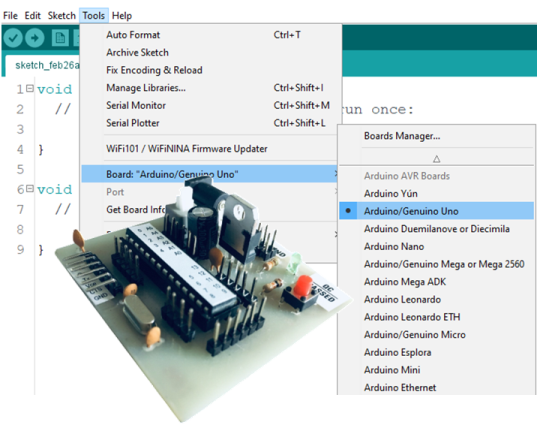
Open the Arduino IDE, & go to tools->board, Now you will see the many option for Arduino Boards. like we our Nutty ATmel Atmega328 Board, it is recommended to select “Arduino/Genuino Uno” as shows in image.

After it, this is programmer for arduino.

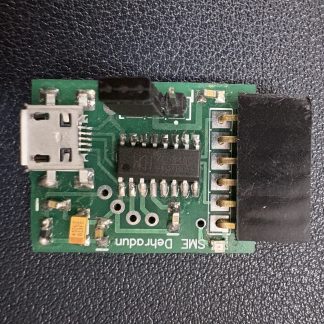
Connect FTDI/ CH340 programmer to your Customized board.

But be careful, you need to connect it properly as per shown below. if you connect it wrongly, then it can harm your customized board as well as your computer.

Now, go to the Tools->Port-> and select the com port as COM3.

Note: If you don’t know how to install FTDI programmer to Arduino IDE, then visit to to our another post that will show you how to install it .

Write your first program:

Copy & paste below program to your Arduino IDE.

/*

Builtin led has connected to 13no pin of Arduino. but we need to connect external led on Customized board

*/


void setup() {
// initialize digital pin LED_BUILTIN as an output.
pinMode(LED_BUILTIN, OUTPUT);
Serial.begin(9600);
Serial.println(“Welcome to Nutty’s ATmel ATmega328 Firmware”);
delay(1000);
}

// the loop function runs over and over again forever
void loop() {
digitalWrite(LED_BUILTIN, HIGH); // turn the LED on (HIGH is the voltage level)
Serial.println(“Led High”);
delay(500); // wait for a second
digitalWrite(LED_BUILTIN, LOW); // turn the LED off by making the voltage LOW
Serial.println(“Led Low”);
delay(500); // wait for a second
}

and click on the upload button to upload the program .

Now, you connect led to 13 no pin (as per the Arduino pins ) of your customized board and it will start blinking.

This is how you can test your customized board.